

Microsoft Enterprise 365 accounts often block automatic email forwarding by default. You may need administrator access to enable this feature.
Setting Up Forwarding Rules in Outlook
Follow these steps to create rules that forward newsletters to your Summate inbox:1
Open Rules Settings
In Outlook Desktop:
- Go to File → Manage Rules & Alerts
- Click New Rule
- Click the Settings gear icon
- Select View all Outlook settings
- Go to Mail → Rules
- Click Add new rule
2
Create a Forwarding Rule
- Name your rule (e.g., “Forward Newsletters to Summate”)
- Add conditions to identify newsletters:
- From: Specific sender or domain
- Subject contains: Newsletter keywords
- Body contains: “unsubscribe” (use cautiously)
3
Set the Forward Action
- Add an action: Forward to
- Enter your Summate inbox:
username@inbox.summate.io - Optionally add more actions:
- Mark as read
- Move to folder
- Apply category
4
Review and Enable
- Review your rule settings
- Ensure “Turn on this rule” is checked
- Click Save or OK
- Test with a sample newsletter
For detailed instructions with screenshots, see Microsoft’s guide: Manage email messages by using rules
Troubleshooting: External Forwarding Blocked
If you see this error when trying to forward emails:Enabling External Forwarding (Administrator Required)
1
Access Microsoft 365 Defender
Log in as an administrator and navigate to: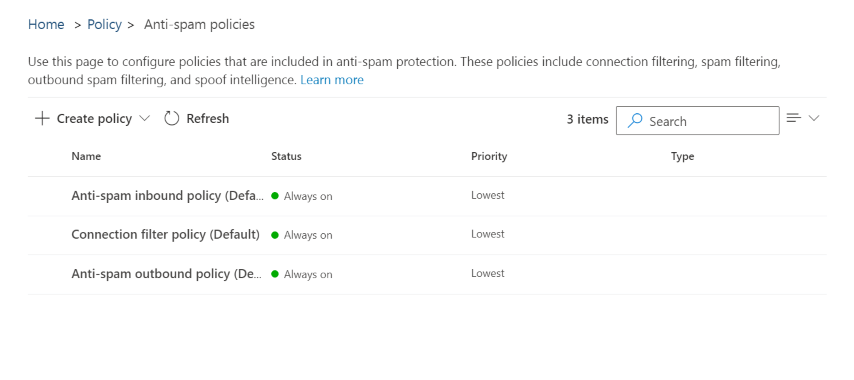
- Email & collaboration → Policies & rules → Threat policies → Anti-spam policies
2
Edit Anti-spam Outbound Policy
Click on Anti-spam outbound policy (Default) and scroll down to click Edit protection settings.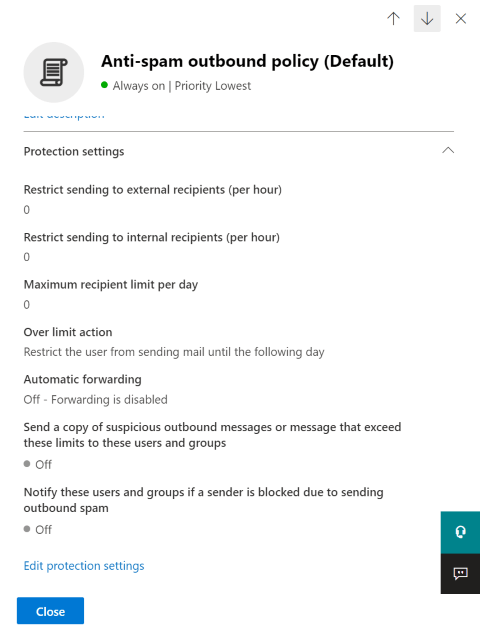
3
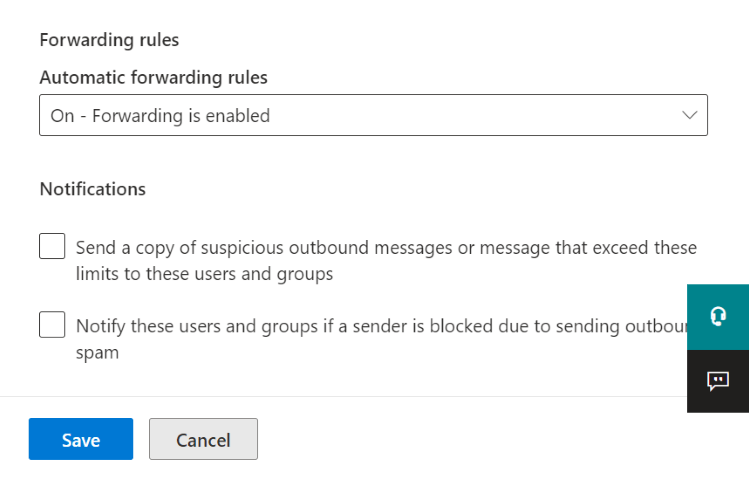
Enable Forwarding Rules
- Find the Forwarding Rules section
- Locate the Automatic Forwarding Rules dropdown
- Select On - Forwarding is enabled
- Click Save at the bottom
Next Steps
Filter Tips
Learn smart filtering strategies to forward only newsletters
Back to Overview
Return to the main auto-forwarding guide