> ## Documentation Index
> Fetch the complete documentation index at: https://docs.summate.io/llms.txt
> Use this file to discover all available pages before exploring further.
# Web
> Online digest reader
Access all your digests online at [summate.io/v2/issues](https://summate.io/v2/issues?ref=docs.summate.io) with an optimized reading experience and interactive features.
 ## Accessing the Web Reader
Digests are always available on the web alongside email delivery—no need to choose between formats.
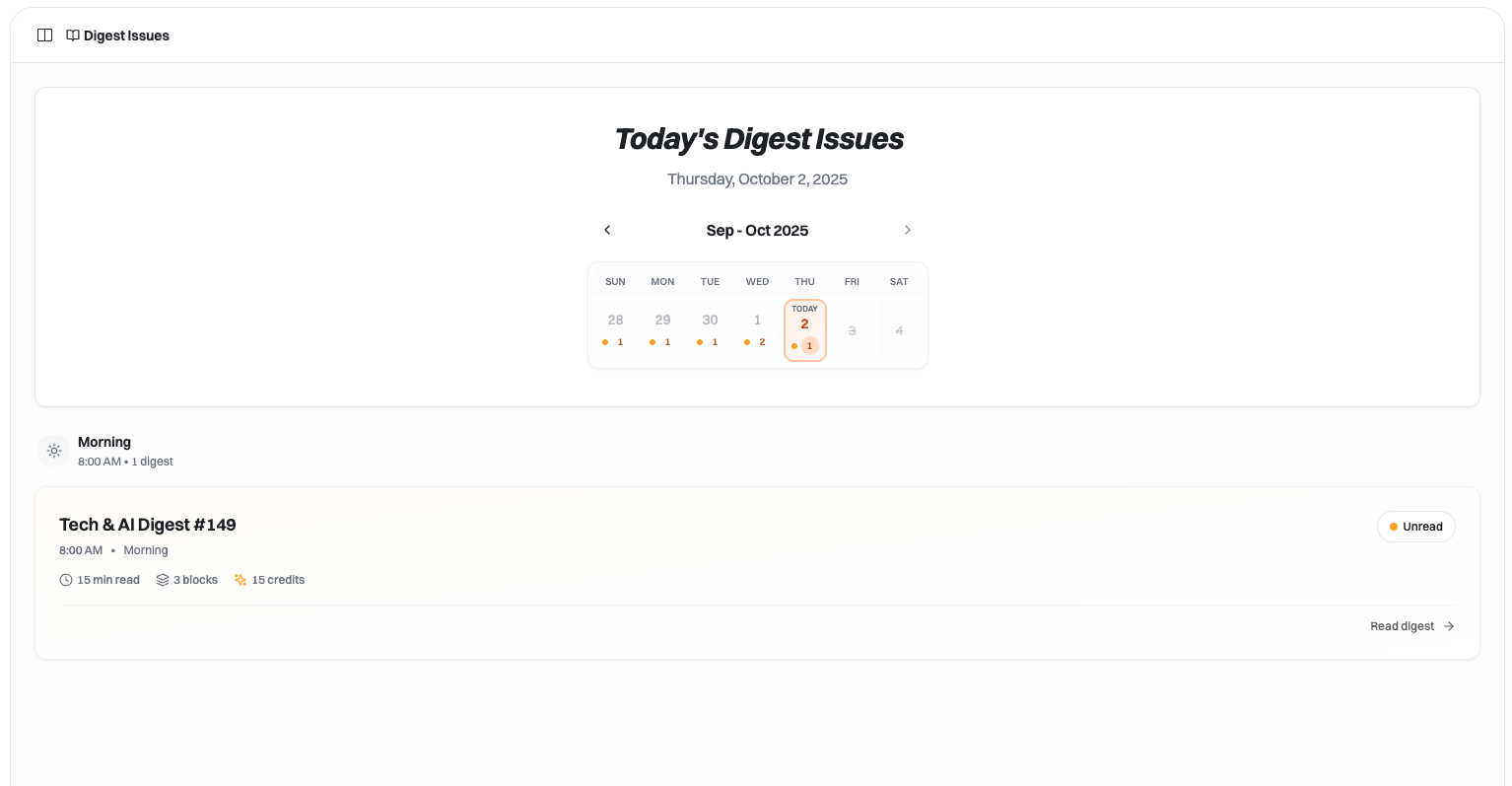
Visit `summate.io/v2/issues` to see all your digest issues:
* **Chronological view** - All past digests organized day by day
* **One-click access** - Select any digest to start reading
* **Bookmark it** - Quick access for daily reading
Every email digest includes a **"Read on Web"** link that:
* Opens directly to that specific digest issue
* Provides the full reading experience
* Useful when email clients clip long digests
## Accessing the Web Reader
Digests are always available on the web alongside email delivery—no need to choose between formats.
Visit `summate.io/v2/issues` to see all your digest issues:
* **Chronological view** - All past digests organized day by day
* **One-click access** - Select any digest to start reading
* **Bookmark it** - Quick access for daily reading
Every email digest includes a **"Read on Web"** link that:
* Opens directly to that specific digest issue
* Provides the full reading experience
* Useful when email clients clip long digests
 ## Why Use the Web Reader
The web interface offers advantages over email for interactive reading:
Read full emails, watch YouTube videos, and view RSS blogs—all on one platform without switching tabs
Navigate through digest items quickly with keyboard commands (desktop)
Clickable takeaways that jump to exact paragraphs or video timestamps
Browse and search all past digest issues anytime
## Reading Interface
### Navigation
The web reader provides two views for navigating your digest:
**Canvas View (Reading List)**
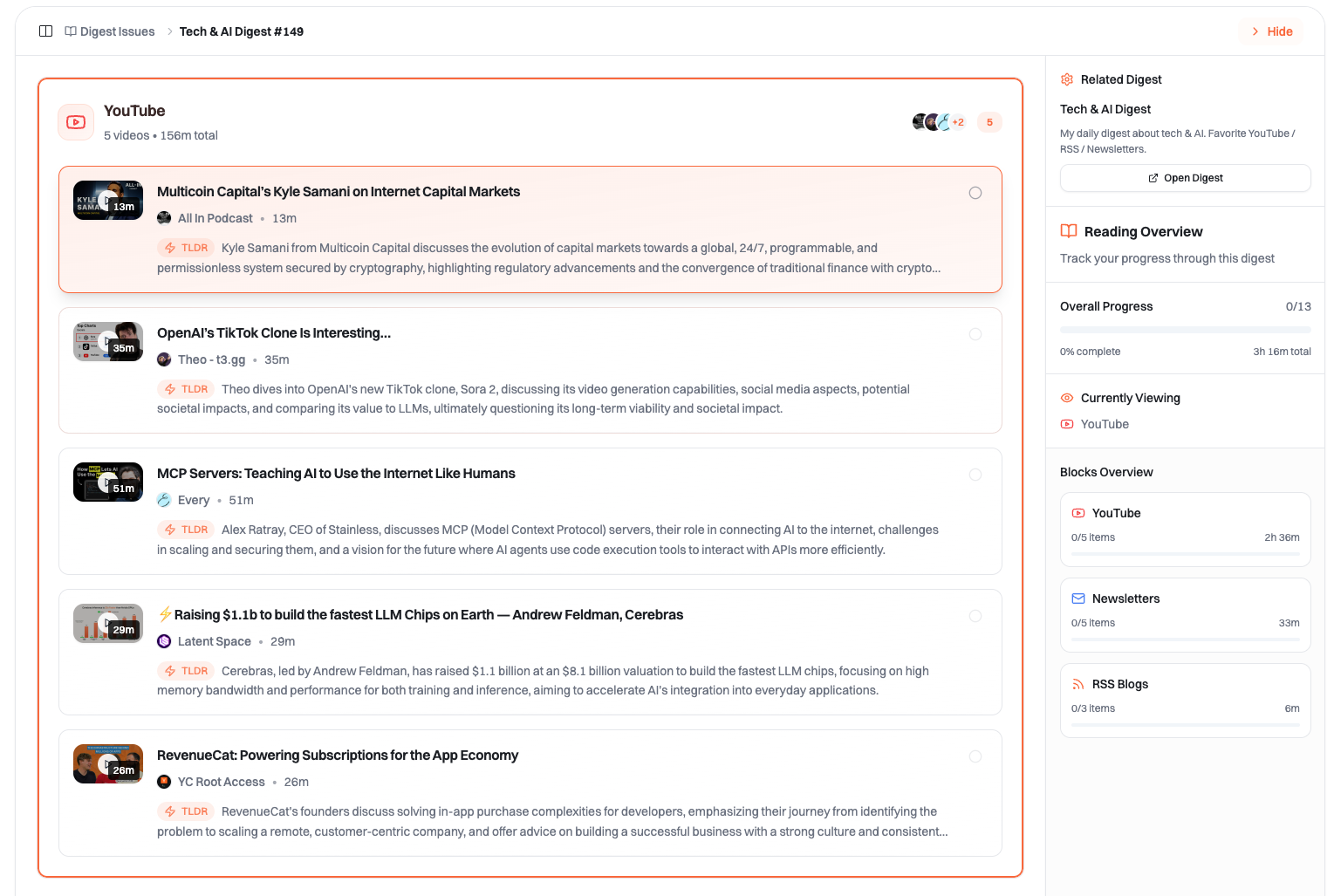
* See all items in the current digest
* Navigate between items with keyboard shortcuts
* Visual overview of content blocks
* Quick scanning through summaries
**Detail View (Content Sheet)**
* Full content display for selected item
* Embedded emails, videos, and blog posts
* Toggle summary and takeaways sections
* Read full original content without leaving the digest
### Embedded Content Rendering
Full newsletter emails render directly in the digest reader using the same interface as the [Inbox](/concepts/inbox):
* Original formatting preserved
* Images and links intact
* No need to switch to email client
Videos play in an embedded player with full controls:
* Play/pause and speed adjustment
* Timestamp jumps from AI takeaways
* Keyboard shortcuts for playback control
Blog posts and articles display with clean formatting:
* Readable typography
* Images and embedded media
* Links to original source
The web reader is especially useful on **desktop** where keyboard shortcuts make navigation significantly faster than scrolling through email.
## Keyboard Shortcuts
Navigate efficiently with keyboard commands (desktop only):
### Canvas Navigation (Reading List)
* `j` or `↓` — Navigate to next item
* `k` or `↑` — Navigate to previous item
* `Cmd/Ctrl + ↑` — Jump to first item
* `Cmd/Ctrl + ↓` — Jump to last item
* `Enter` — Open detail view for current item
### Detail View (All Content Types)
* `Esc` — Close detail view
* `r` — Toggle read/unread status
* `e` — Mark as read
* `s` — Toggle summary section
* `t` — Toggle takeaways section
### Detail View (YouTube Only)
* `Space` — Play/pause video
* `d` — Speed up playback
* `a` — Slow down playback
Keyboard shortcuts are available on desktop only. Mobile users can navigate by tapping items in the reading list.
## Different Summary Types
Summary formats vary based on your [AI customization settings](/concepts/ai). Each format offers different features for interacting with content.
### Detailed Summaries
When using the **Detailed Summaries** format, interactive references work seamlessly in the web reader:
Each takeaway is clickable in both summary and detail views
* **Email content**: Scrolls to the specific paragraph in the embedded email
* **YouTube videos**: Jumps video to the exact timestamp in the embedded player
* **RSS posts**: Links to the relevant section in the embedded blog post
All content is embedded—no need to open external links or switch tabs
More summary formats with unique interactive features are coming soon.
## When to Use Web vs Email
* You prefer reading in your familiar email client
* You want to quickly scroll through digest summaries
* You're triaging content on the go
* You don't need embedded video/content
* You want to watch videos or read full emails in one place
* You're on desktop and can use keyboard shortcuts
* Email client is clipping long digests
* You need to find past digest issues
* You want the most interactive reading experience
## Related Pages
Read digests in your email client
Understand interactive summaries and takeaways
Configure delivery schedule and settings
Manage newsletter sources and read full emails
## Why Use the Web Reader
The web interface offers advantages over email for interactive reading:
Read full emails, watch YouTube videos, and view RSS blogs—all on one platform without switching tabs
Navigate through digest items quickly with keyboard commands (desktop)
Clickable takeaways that jump to exact paragraphs or video timestamps
Browse and search all past digest issues anytime
## Reading Interface
### Navigation
The web reader provides two views for navigating your digest:
**Canvas View (Reading List)**
* See all items in the current digest
* Navigate between items with keyboard shortcuts
* Visual overview of content blocks
* Quick scanning through summaries
**Detail View (Content Sheet)**
* Full content display for selected item
* Embedded emails, videos, and blog posts
* Toggle summary and takeaways sections
* Read full original content without leaving the digest
### Embedded Content Rendering
Full newsletter emails render directly in the digest reader using the same interface as the [Inbox](/concepts/inbox):
* Original formatting preserved
* Images and links intact
* No need to switch to email client
Videos play in an embedded player with full controls:
* Play/pause and speed adjustment
* Timestamp jumps from AI takeaways
* Keyboard shortcuts for playback control
Blog posts and articles display with clean formatting:
* Readable typography
* Images and embedded media
* Links to original source
The web reader is especially useful on **desktop** where keyboard shortcuts make navigation significantly faster than scrolling through email.
## Keyboard Shortcuts
Navigate efficiently with keyboard commands (desktop only):
### Canvas Navigation (Reading List)
* `j` or `↓` — Navigate to next item
* `k` or `↑` — Navigate to previous item
* `Cmd/Ctrl + ↑` — Jump to first item
* `Cmd/Ctrl + ↓` — Jump to last item
* `Enter` — Open detail view for current item
### Detail View (All Content Types)
* `Esc` — Close detail view
* `r` — Toggle read/unread status
* `e` — Mark as read
* `s` — Toggle summary section
* `t` — Toggle takeaways section
### Detail View (YouTube Only)
* `Space` — Play/pause video
* `d` — Speed up playback
* `a` — Slow down playback
Keyboard shortcuts are available on desktop only. Mobile users can navigate by tapping items in the reading list.
## Different Summary Types
Summary formats vary based on your [AI customization settings](/concepts/ai). Each format offers different features for interacting with content.
### Detailed Summaries
When using the **Detailed Summaries** format, interactive references work seamlessly in the web reader:
Each takeaway is clickable in both summary and detail views
* **Email content**: Scrolls to the specific paragraph in the embedded email
* **YouTube videos**: Jumps video to the exact timestamp in the embedded player
* **RSS posts**: Links to the relevant section in the embedded blog post
All content is embedded—no need to open external links or switch tabs
More summary formats with unique interactive features are coming soon.
## When to Use Web vs Email
* You prefer reading in your familiar email client
* You want to quickly scroll through digest summaries
* You're triaging content on the go
* You don't need embedded video/content
* You want to watch videos or read full emails in one place
* You're on desktop and can use keyboard shortcuts
* Email client is clipping long digests
* You need to find past digest issues
* You want the most interactive reading experience
## Related Pages
Read digests in your email client
Understand interactive summaries and takeaways
Configure delivery schedule and settings
Manage newsletter sources and read full emails