> ## Documentation Index
> Fetch the complete documentation index at: https://docs.summate.io/llms.txt
> Use this file to discover all available pages before exploring further.
# Substack Import
> One-click Substack import
Instead of adding Substack newsletters one by one, you can connect your Substack account and import all your subscriptions at once.
**Paid Substack subscribers: Use email forwarding instead**
If you're subscribed to paid Substacks, this import feature will only capture the free preview, not the full content. We **strongly recommend** using [email auto-forwarding](/guides/auto-forwarding/overview) and adding your newsletters to an [Email block](/concepts/blocks#email-block) instead. This way, you'll get the complete content of paid newsletters.
**Best for quick imports:** This feature is designed as a fast way to bring in all your free Substack subscriptions. For better management and full control, consider using [email forwarding](/guides/auto-forwarding/overview) to add newsletters to an Email block instead.
This import is available when adding an RSS block. You can also add individual Substack newsletters by pasting their URLs directly.
## Connecting Your Substack Account
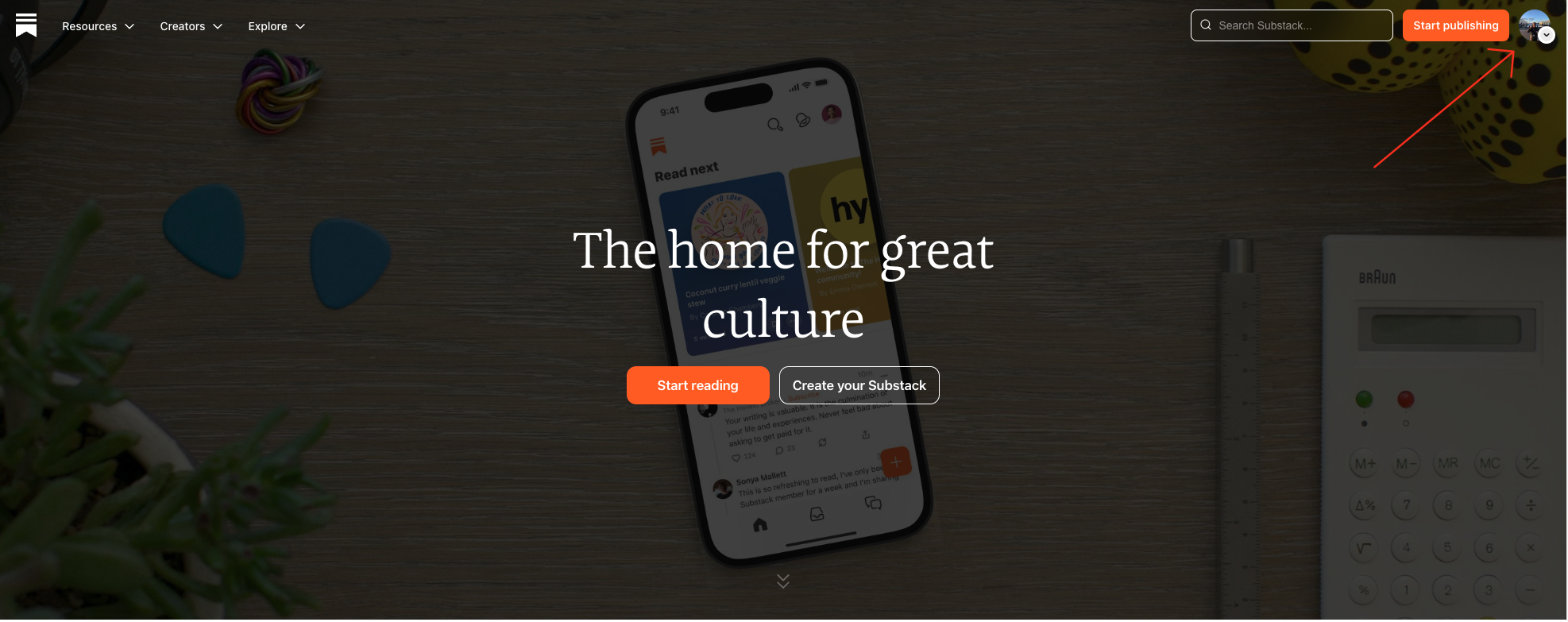
Navigate to substack.com and click on your profile icon, then click on your name to view your profile.
 For Summate to import your subscriptions, your 'Reads' section must be public.
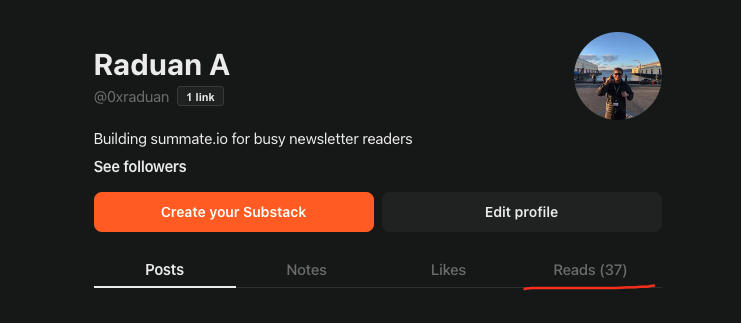 Click **'Edit Profile'** and scroll down to the **'Reads'** section. Here you can choose which newsletters to make public.
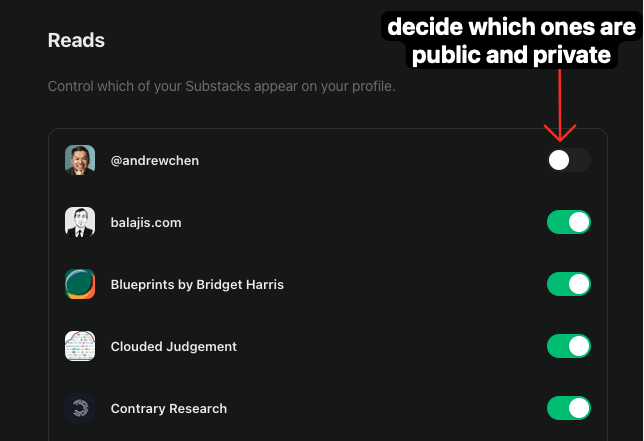 You only need to make your Reads public during the import. After syncing with Summate, you can make them private again.
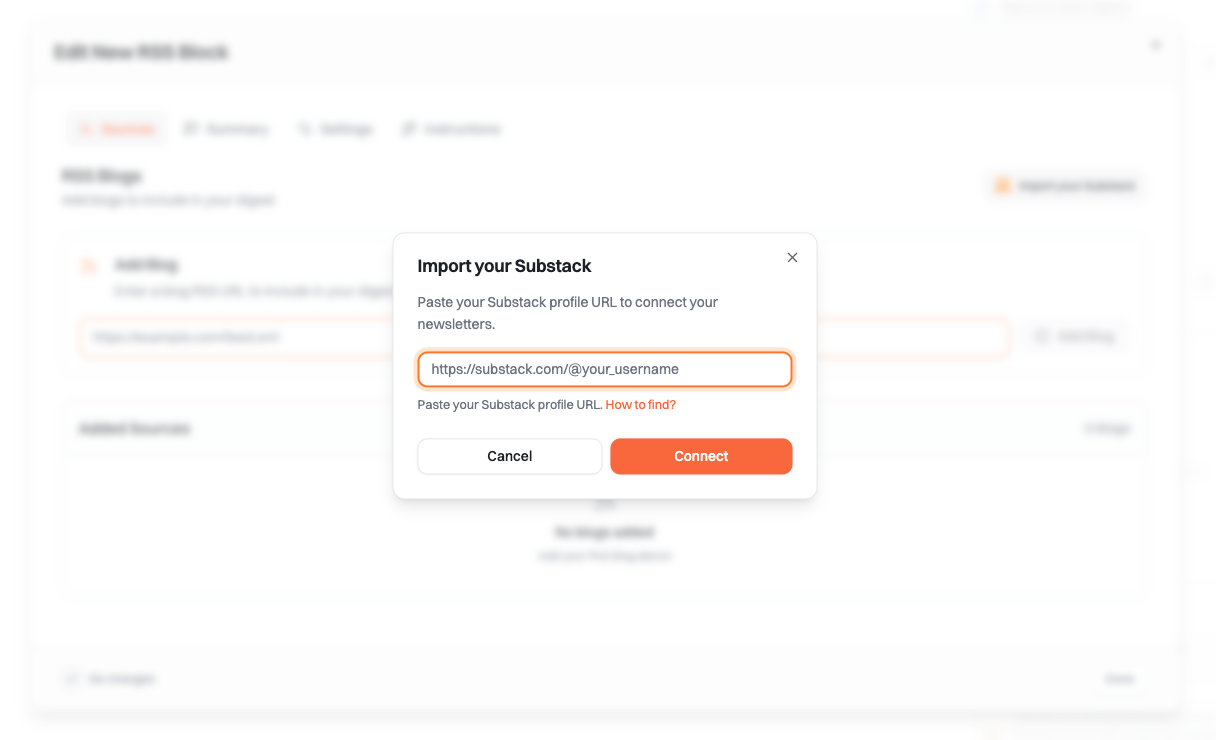
In Summate, when creating or editing an RSS block, click **'Import your Substack'**.
You only need to make your Reads public during the import. After syncing with Summate, you can make them private again.
In Summate, when creating or editing an RSS block, click **'Import your Substack'**.
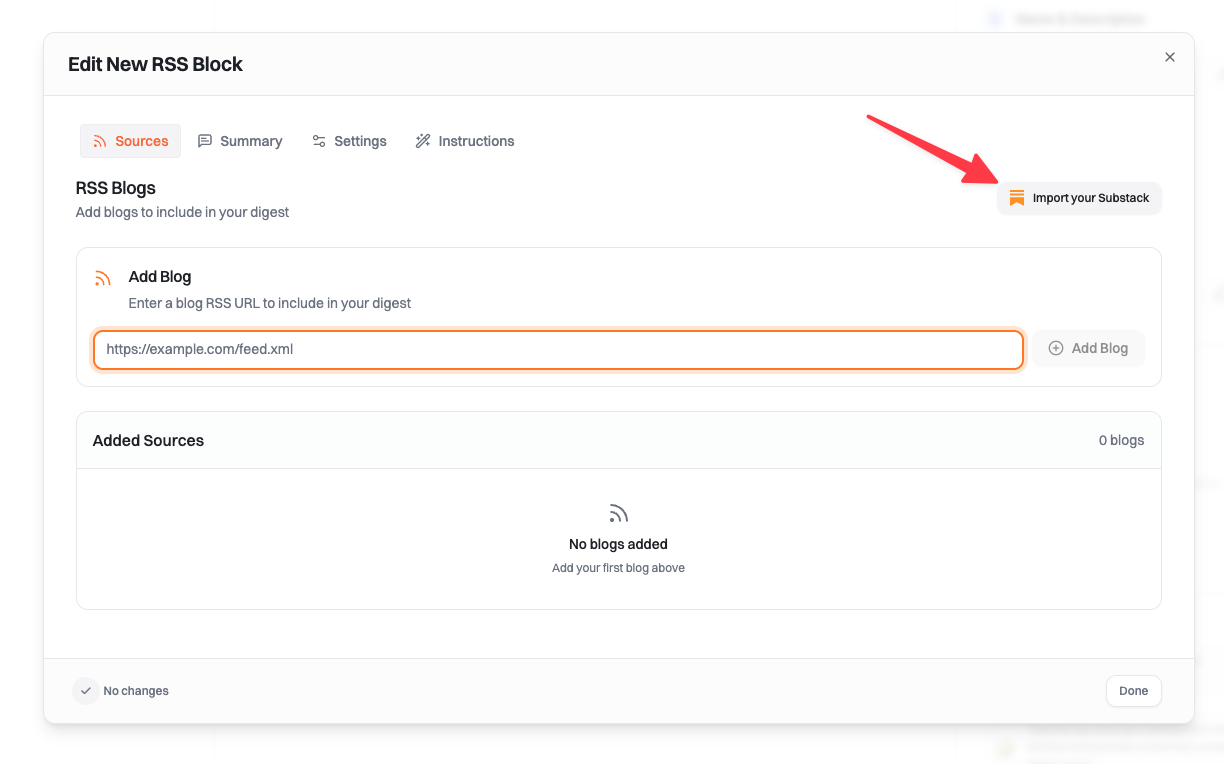 Enter your Substack profile URL in the format:
* `https://substack.com/@username` or
* `https://substack.com/profile/username`
Enter your Substack profile URL in the format:
* `https://substack.com/@username` or
* `https://substack.com/profile/username`
 Summate will fetch all your public subscriptions. Select which ones you want to add to your RSS block.
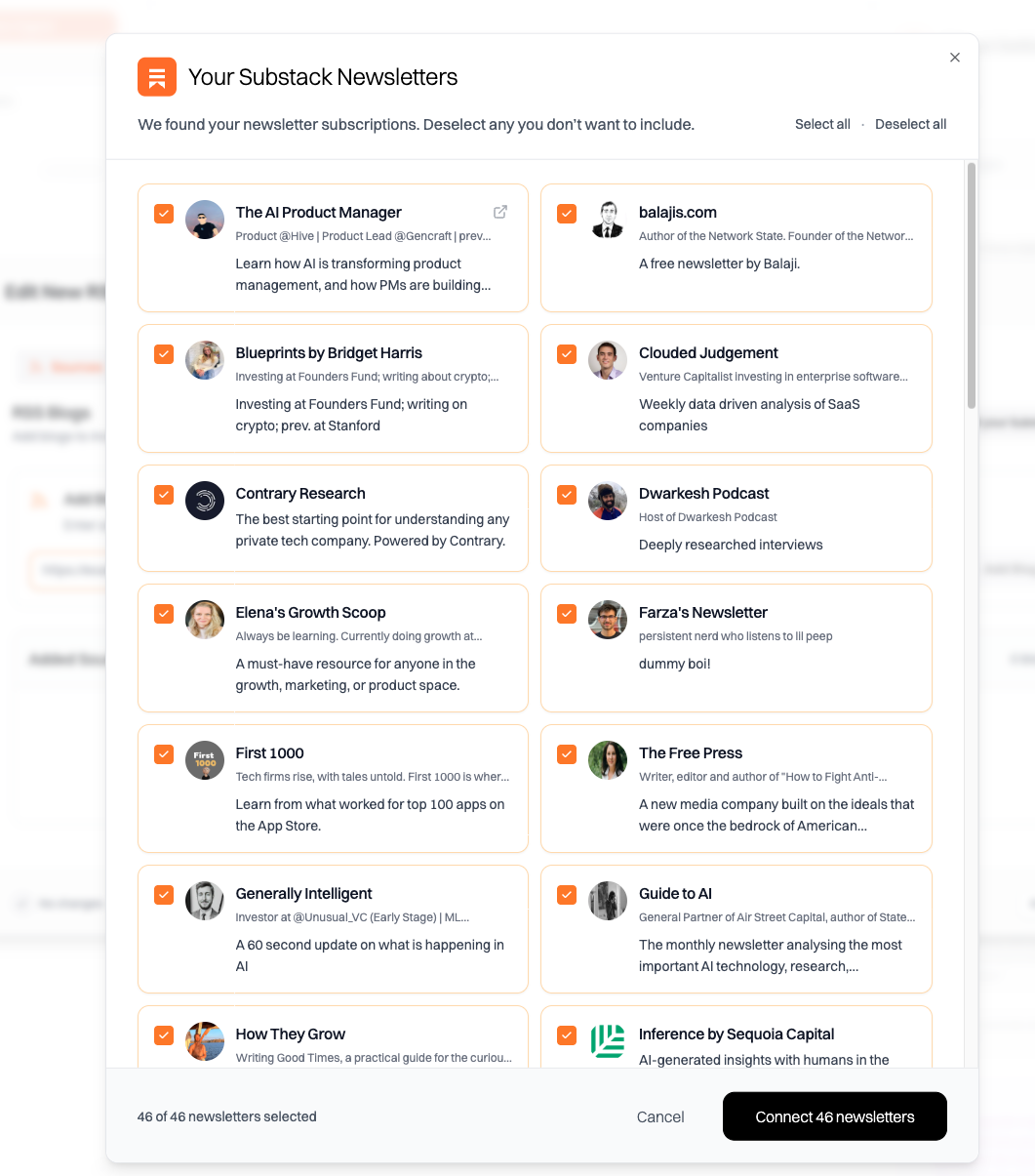 The selected newsletters will be added as sources in your RSS block.
## After Import
Once imported, your Substack newsletters will appear as RSS sources in your block. You can:
* View them in the RSS block's Sources tab
* Remove individual newsletters if needed
* Import additional Substack accounts following the same process
Substack newsletters imported this way are treated as RSS feeds. They'll be summarized just like any other blog or RSS source in your digest.
## Troubleshooting
* Verify your Reads section is public
* Check that your profile URL is correct
* Try using the alternative URL format (`@username` vs `profile/username`)
Only newsletters visible in your public Reads will be imported. Check your Reads privacy settings and make sure the newsletters you want are set to public.
If you're already receiving Substack newsletters via [email forwarding](/guides/auto-forwarding/overview), you don't need to import them as RSS sources. You can add them to an Email block instead.
## Related Pages
Learn about RSS blocks and sources
Understand how sources work
Alternative: Forward Substack newsletters via email
The selected newsletters will be added as sources in your RSS block.
## After Import
Once imported, your Substack newsletters will appear as RSS sources in your block. You can:
* View them in the RSS block's Sources tab
* Remove individual newsletters if needed
* Import additional Substack accounts following the same process
Substack newsletters imported this way are treated as RSS feeds. They'll be summarized just like any other blog or RSS source in your digest.
## Troubleshooting
* Verify your Reads section is public
* Check that your profile URL is correct
* Try using the alternative URL format (`@username` vs `profile/username`)
Only newsletters visible in your public Reads will be imported. Check your Reads privacy settings and make sure the newsletters you want are set to public.
If you're already receiving Substack newsletters via [email forwarding](/guides/auto-forwarding/overview), you don't need to import them as RSS sources. You can add them to an Email block instead.
## Related Pages
Learn about RSS blocks and sources
Understand how sources work
Alternative: Forward Substack newsletters via email