> ## Documentation Index
> Fetch the complete documentation index at: https://docs.summate.io/llms.txt
> Use this file to discover all available pages before exploring further.
# Outlook/Microsoft 365 Auto-Forwarding Setup
> Set up auto-forwarding for Outlook.com and Microsoft 365 accounts
Microsoft Enterprise 365 accounts often block automatic email forwarding by default. You may need administrator access to enable this feature.
## Setting Up Forwarding Rules in Outlook
Follow these steps to create rules that forward newsletters to your Summate inbox:
**In Outlook Desktop:**
1. Go to **File** → **Manage Rules & Alerts**
2. Click **New Rule**
**In Outlook Web:**
1. Click the Settings gear icon
2. Select **View all Outlook settings**
3. Go to **Mail** → **Rules**
4. Click **Add new rule**
1. Name your rule (e.g., "Forward Newsletters to Summate")
2. Add conditions to identify newsletters:
* **From**: Specific sender or domain
* **Subject contains**: Newsletter keywords
* **Body contains**: "unsubscribe" (use cautiously)
See [Filter Tips](/guides/auto-forwarding/filter-tips) for smart filtering ideas.
1. Add an action: **Forward to**
2. Enter your Summate inbox: `username@inbox.summate.io`
3. Optionally add more actions:
* Mark as read
* Move to folder
* Apply category
1. Review your rule settings
2. Ensure "Turn on this rule" is checked
3. Click **Save** or **OK**
4. Test with a sample newsletter
For detailed instructions with screenshots, see Microsoft's guide: [Manage email messages by using rules](https://support.microsoft.com/en-us/office/manage-email-messages-by-using-rules-in-outlook-c24f5dea-9465-4df4-ad17-a50704d66c59)
## Troubleshooting: External Forwarding Blocked
If you see this error when trying to forward emails:
```
550 5.7.520 Access denied, Your organization does not allow external forwarding.
Please contact your administrator for further assistance. AS(7550)
```
This means your Microsoft 365 account has external forwarding disabled. You'll need administrator access to enable it.
### Enabling External Forwarding (Administrator Required)
Log in as an administrator and navigate to:
* **Email & collaboration** → **Policies & rules** → **Threat policies** → **Anti-spam policies**
Or go directly to: [https://security.microsoft.com/antispam](https://security.microsoft.com/antispam)
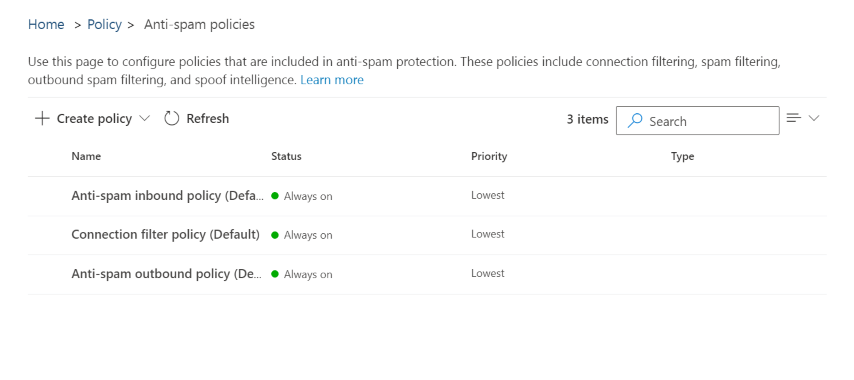 If you don't see these options, ensure you're logged in with administrator privileges.
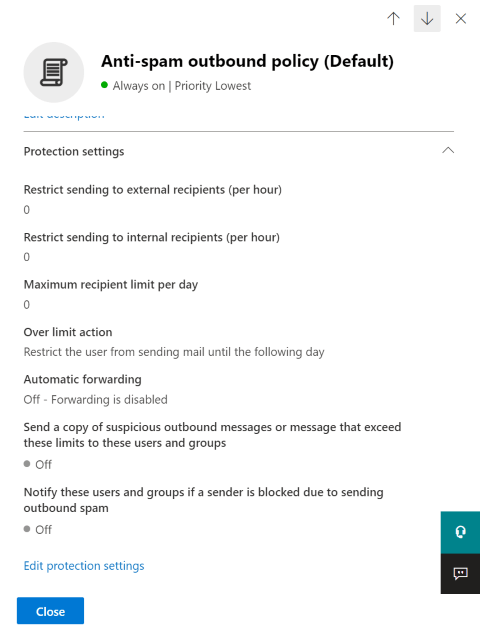
Click on **Anti-spam outbound policy (Default)** and scroll down to click **Edit protection settings**.
If you don't see these options, ensure you're logged in with administrator privileges.
Click on **Anti-spam outbound policy (Default)** and scroll down to click **Edit protection settings**.
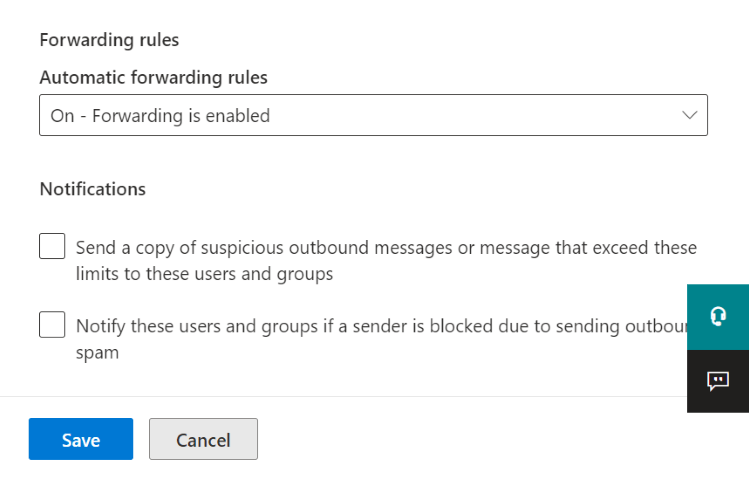
 1. Find the **Forwarding Rules** section
2. Locate the **Automatic Forwarding Rules** dropdown
3. Select **On - Forwarding is enabled**
4. Click **Save** at the bottom
1. Find the **Forwarding Rules** section
2. Locate the **Automatic Forwarding Rules** dropdown
3. Select **On - Forwarding is enabled**
4. Click **Save** at the bottom
 ## Next Steps
Learn smart filtering strategies to forward only newsletters
Return to the main auto-forwarding guide
## Next Steps
Learn smart filtering strategies to forward only newsletters
Return to the main auto-forwarding guide