> ## Documentation Index
> Fetch the complete documentation index at: https://docs.summate.io/llms.txt
> Use this file to discover all available pages before exploring further.
# Gmail Auto-Forwarding Setup
> Complete step-by-step guide to set up selective auto-forwarding from Gmail to Summate
This guide will walk you through setting up selective auto-forwarding from Gmail to your Summate inbox. The process takes about 5 minutes and involves verifying your Summate inbox address and creating filters to forward newsletters.
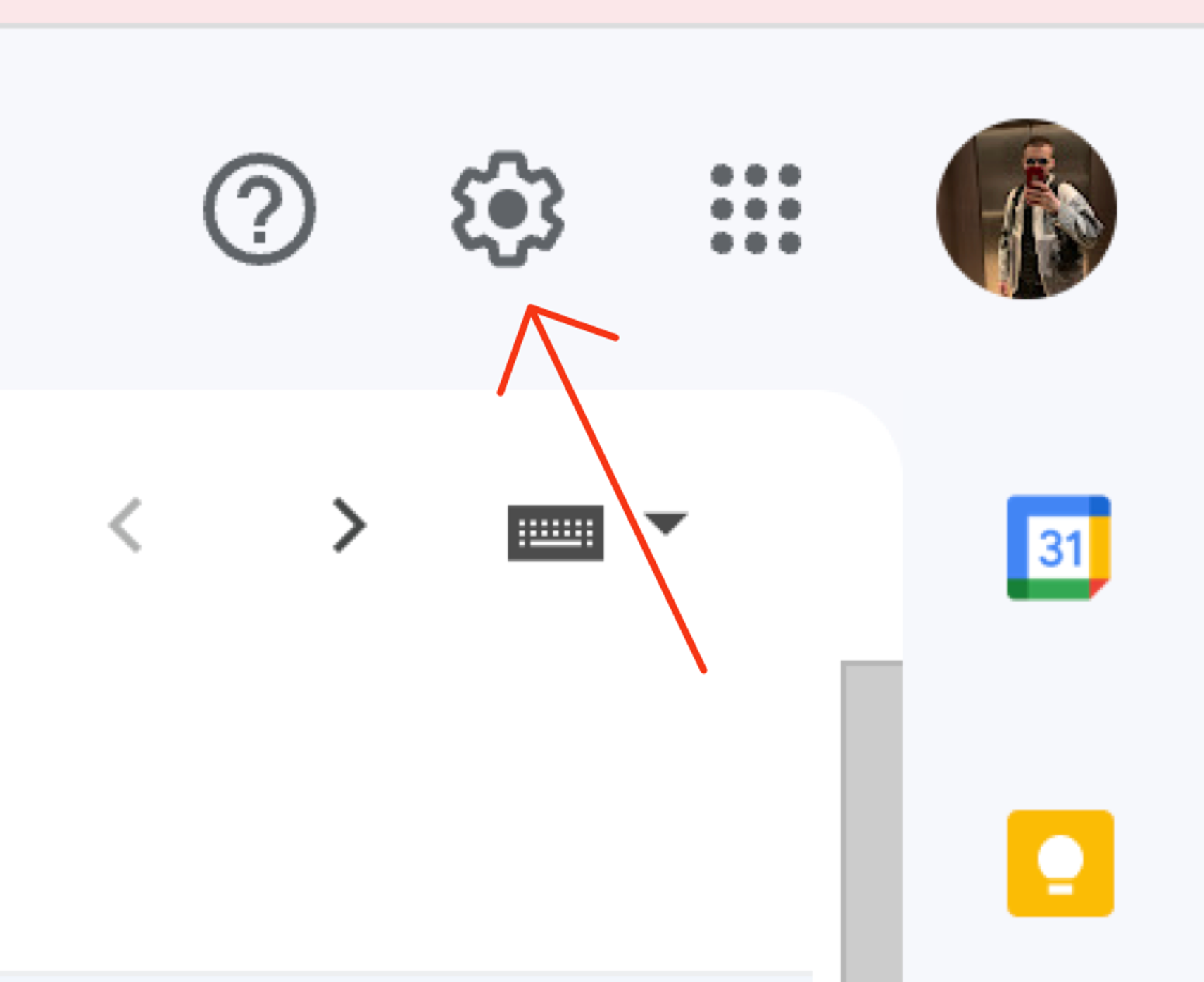
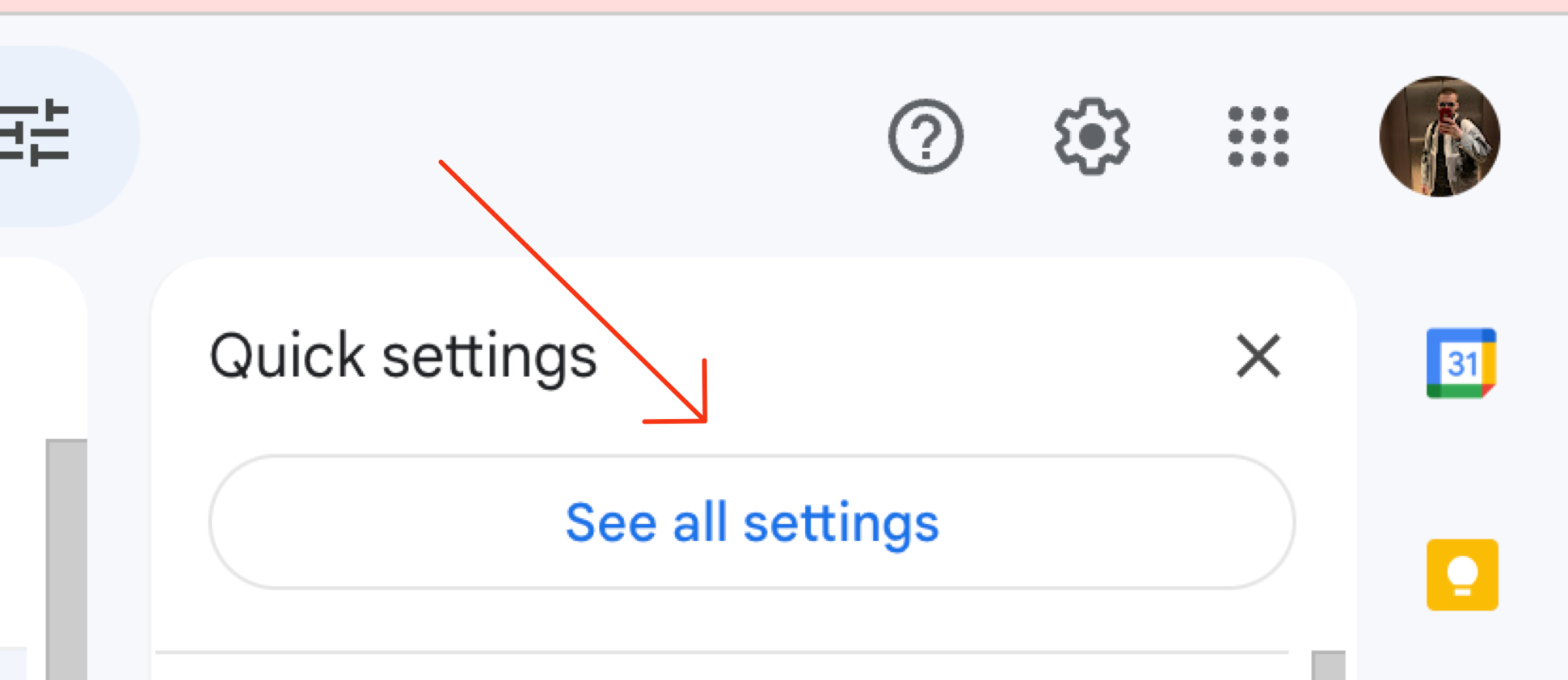
Click the gear icon in Gmail and select "See all settings".
Click on the "Forwarding and POP/IMAP" tab in the settings menu.
 Click "Add a forwarding address" button.
**Important:** Do NOT enable "Forward a copy of incoming mail to..."
This would forward ALL your emails. Instead, you'll set up selective forwarding with filters in Step 8.
Click "Add a forwarding address" button.
**Important:** Do NOT enable "Forward a copy of incoming mail to..."
This would forward ALL your emails. Instead, you'll set up selective forwarding with filters in Step 8.
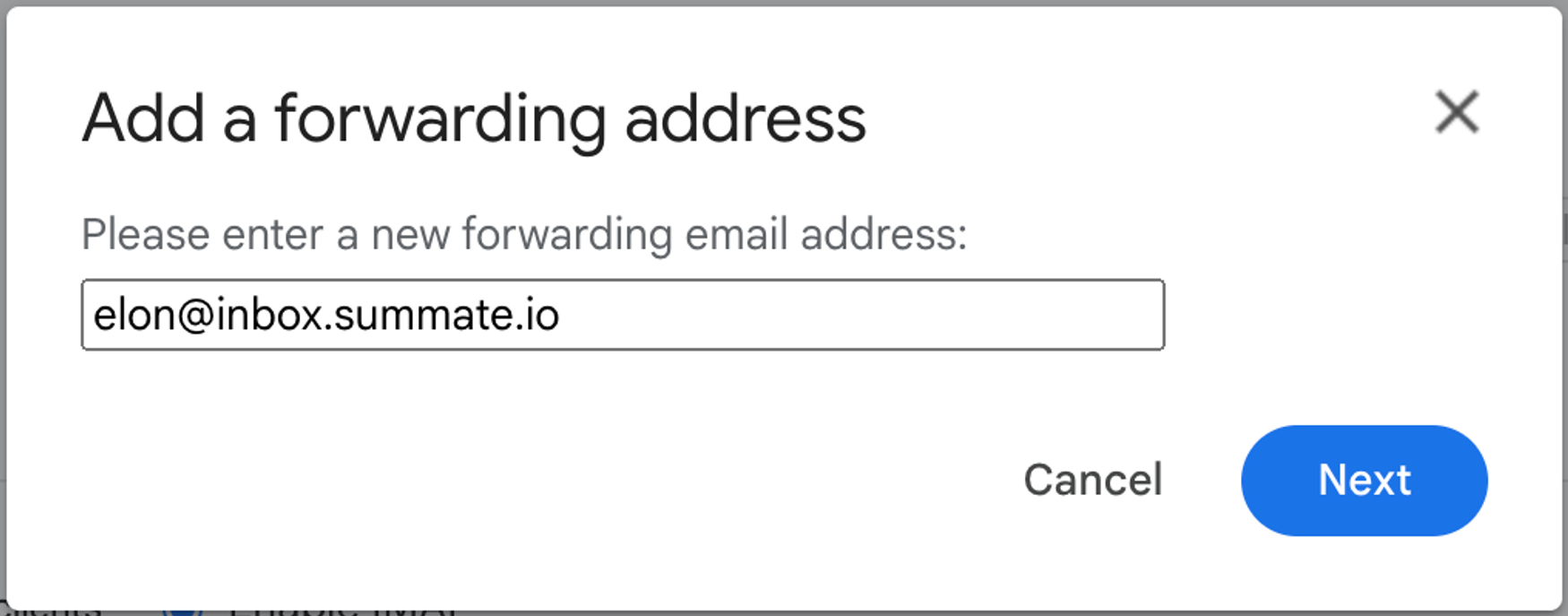
 Enter your unique Summate inbox: `username@inbox.summate.io`
You should have received this during onboarding. If you haven't, visit [your inbox page](https://summate.io/v2/inbox?ref=docs.summate.io) to find it.
Enter your unique Summate inbox: `username@inbox.summate.io`
You should have received this during onboarding. If you haven't, visit [your inbox page](https://summate.io/v2/inbox?ref=docs.summate.io) to find it.
 Gmail will ask you to verify your identity (possibly through 2FA).
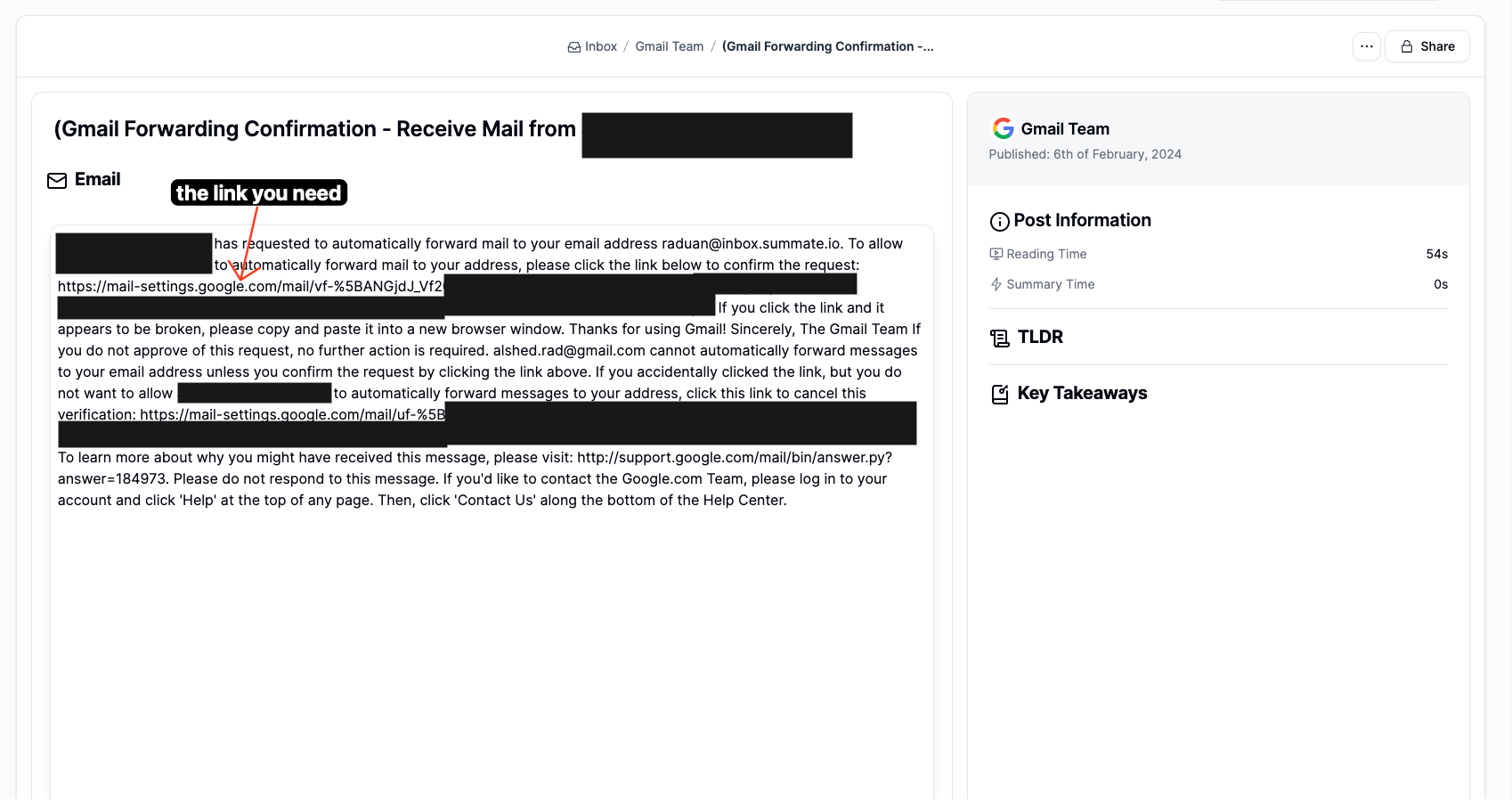
After authorization, Gmail sends a verification link to your Summate inbox.
1. Navigate to [your Summate inbox](https://summate.io/v2/inbox?ref=docs.summate.io)
2. Look for a new sender in the pending section
3. Click on the Gmail verification email
Gmail will ask you to verify your identity (possibly through 2FA).
After authorization, Gmail sends a verification link to your Summate inbox.
1. Navigate to [your Summate inbox](https://summate.io/v2/inbox?ref=docs.summate.io)
2. Look for a new sender in the pending section
3. Click on the Gmail verification email
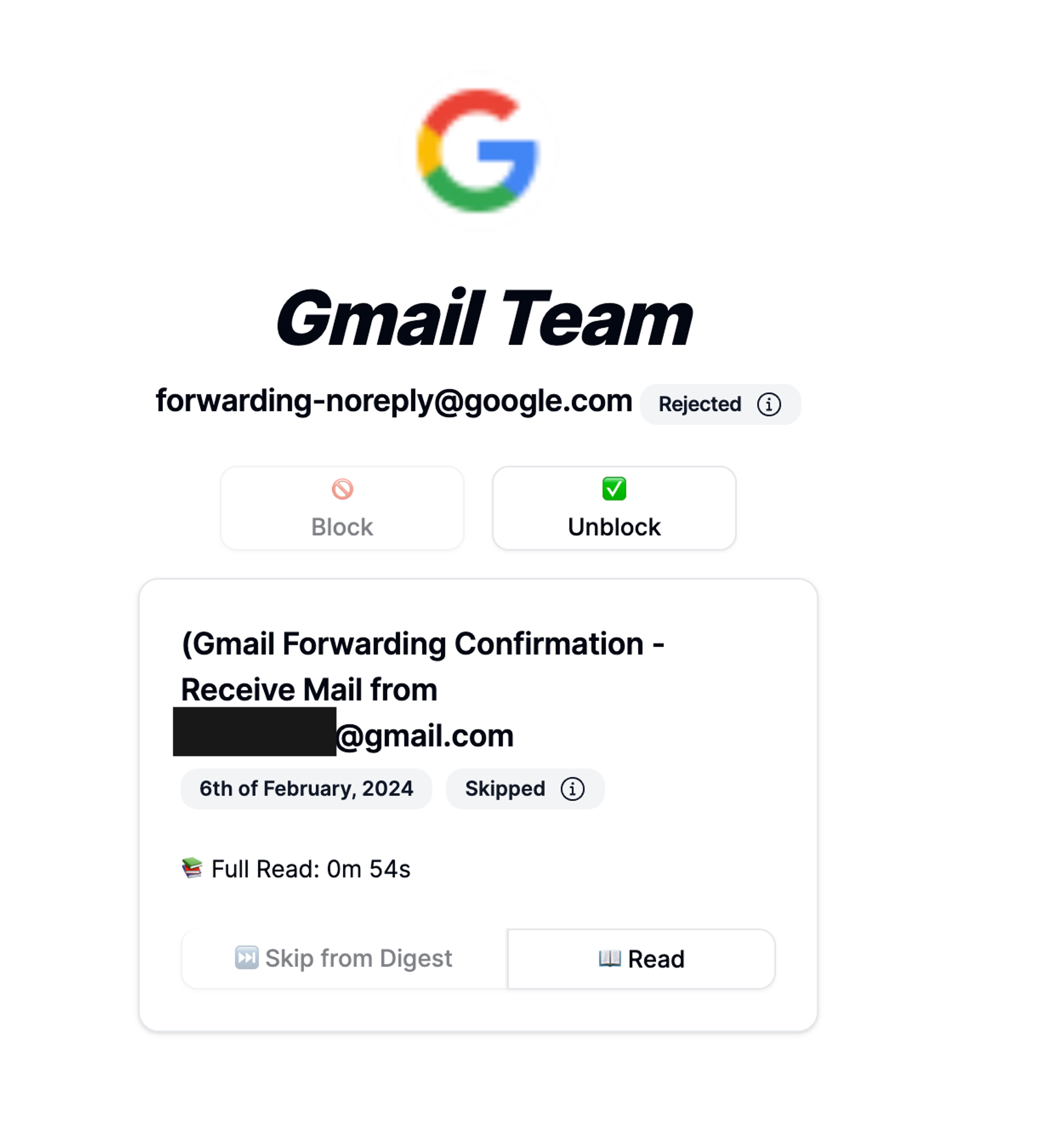 Copy the verification link from the email (it starts with `https://mail-settings.google.com/mail/...`) and paste it into your browser.
 Now that your Summate address is verified, create filters to selectively forward newsletters.
**Part A: Go to Filters and Blocked Addresses**
Now that your Summate address is verified, create filters to selectively forward newsletters.
**Part A: Go to Filters and Blocked Addresses**
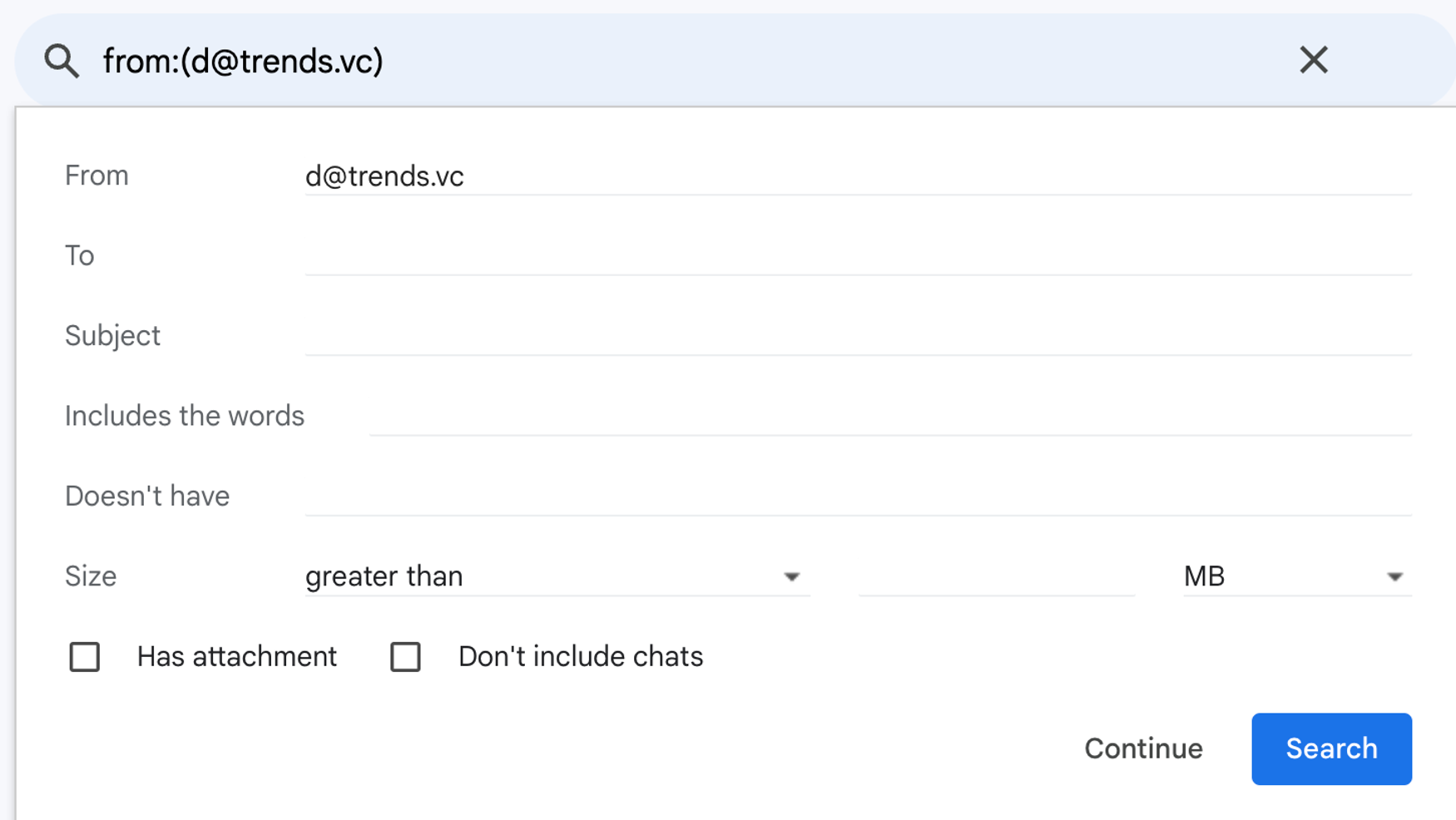
 **Part B: Create a new filter**
Click "Create a new filter" and specify your criteria (e.g., from a specific sender).
**Part B: Create a new filter**
Click "Create a new filter" and specify your criteria (e.g., from a specific sender).
 **Part C: Configure forwarding action**
1. Check "Forward it to" and select your Summate inbox
2. Optionally check "Mark as read" to keep your inbox clean
3. Click "Create filter"
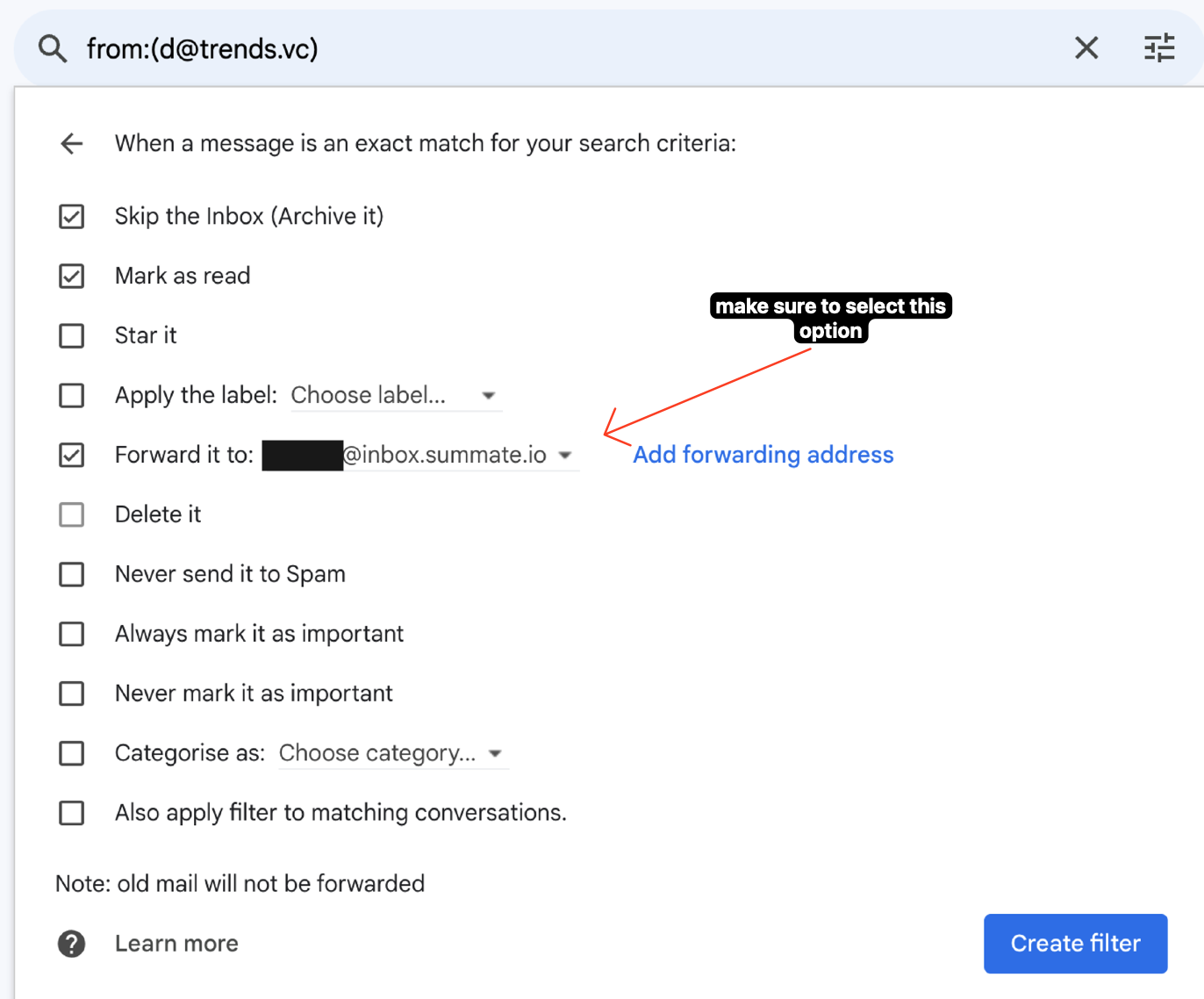
**Part C: Configure forwarding action**
1. Check "Forward it to" and select your Summate inbox
2. Optionally check "Mark as read" to keep your inbox clean
3. Click "Create filter"
 ## Label-Based Forwarding
**Smart approach:** Instead of creating separate filters for each newsletter sender, you can organize all your newsletters under a single Gmail label, then forward everything with that label to Summate in one filter.
This is particularly useful if you already use labels to organize your newsletters, or prefer to manually review and label emails before forwarding them.
### How to Forward by Label
1. Go to Gmail Settings > Filters and Blocked Addresses
2. Click "Create a new filter"
3. In the "Has the words" field, enter `label:yourlabelname` (replace with your actual label)
4. Click "Create filter" and check "Forward it to"
5. Select your Summate inbox address
For nested labels, use the format `label:parent/child`.
**Example:** If you organize newsletters under a label called "Newsletters", create a filter with `label:Newsletters` and forward to your Summate inbox. Any email you label as "Newsletters" will automatically forward to Summate.
## Next Steps
Learn smart filtering strategies to forward only newsletters
Return to the main auto-forwarding guide
## Label-Based Forwarding
**Smart approach:** Instead of creating separate filters for each newsletter sender, you can organize all your newsletters under a single Gmail label, then forward everything with that label to Summate in one filter.
This is particularly useful if you already use labels to organize your newsletters, or prefer to manually review and label emails before forwarding them.
### How to Forward by Label
1. Go to Gmail Settings > Filters and Blocked Addresses
2. Click "Create a new filter"
3. In the "Has the words" field, enter `label:yourlabelname` (replace with your actual label)
4. Click "Create filter" and check "Forward it to"
5. Select your Summate inbox address
For nested labels, use the format `label:parent/child`.
**Example:** If you organize newsletters under a label called "Newsletters", create a filter with `label:Newsletters` and forward to your Summate inbox. Any email you label as "Newsletters" will automatically forward to Summate.
## Next Steps
Learn smart filtering strategies to forward only newsletters
Return to the main auto-forwarding guide