> ## Documentation Index
> Fetch the complete documentation index at: https://docs.summate.io/llms.txt
> Use this file to discover all available pages before exploring further.
# Sources
> Individual content providers in your digests
Sources are the individual content providers within your [blocks](/concepts/blocks) - each YouTube channel, RSS blog, or email sender that you add to create your digests.
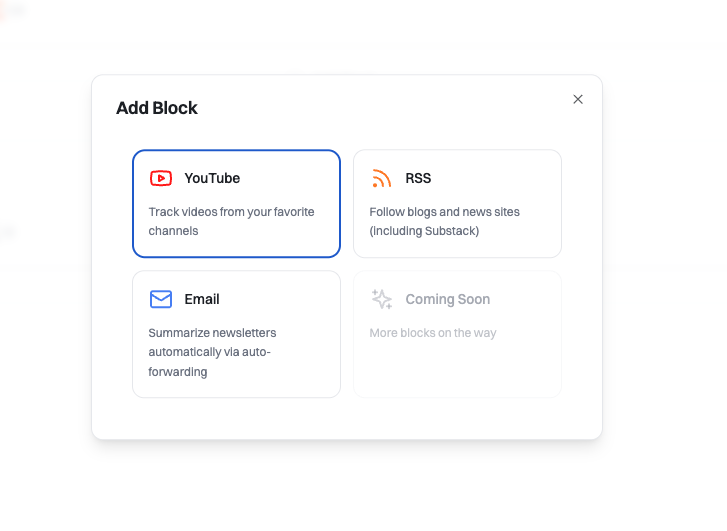 **Email sources** are managed through your [Inbox](/concepts/inbox) - all
received newsletters are automatically available as sources. **YouTube and RSS
sources** are added directly when you create blocks in your digest.
## What are Sources?
A source is a specific content provider:
* **Email source** - A particular newsletter sender (e.g., "Morning Brew")
* **YouTube source** - A specific channel (e.g., "Fireship")
* **RSS source** - A blog or website with an RSS feed (e.g., "TechCrunch")
Each [block](/concepts/blocks) in your digest pulls content from the sources you've selected for that block.
## Source Types
### Email Sources
Email newsletters from any platform - Substack, Beehiiv, ConvertKit, Mailchimp, or any email-based newsletter.
**Email sources** are managed through your [Inbox](/concepts/inbox) - all
received newsletters are automatically available as sources. **YouTube and RSS
sources** are added directly when you create blocks in your digest.
## What are Sources?
A source is a specific content provider:
* **Email source** - A particular newsletter sender (e.g., "Morning Brew")
* **YouTube source** - A specific channel (e.g., "Fireship")
* **RSS source** - A blog or website with an RSS feed (e.g., "TechCrunch")
Each [block](/concepts/blocks) in your digest pulls content from the sources you've selected for that block.
## Source Types
### Email Sources
Email newsletters from any platform - Substack, Beehiiv, ConvertKit, Mailchimp, or any email-based newsletter.
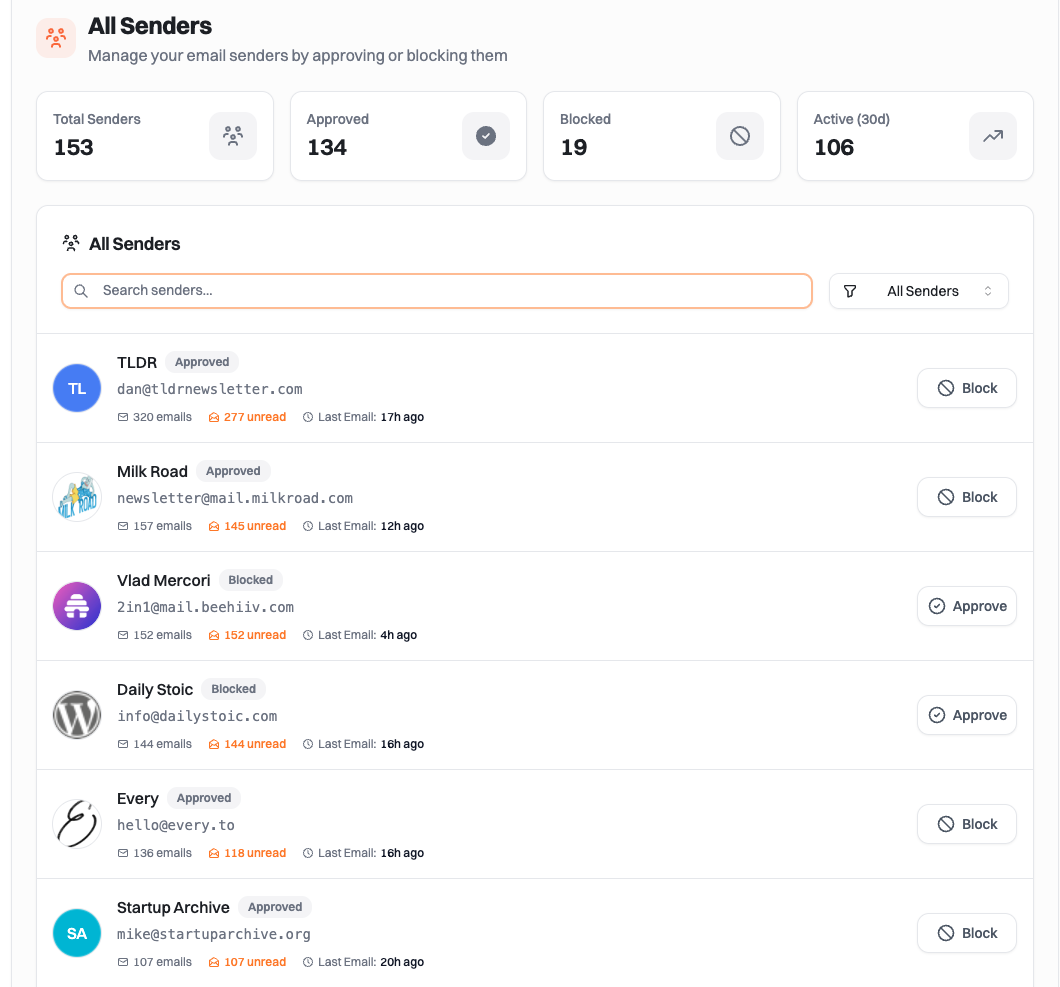 **How to add:**
1. Set up your [Summate Inbox](/concepts/inbox)
2. Forward newsletters to your inbox (see our [auto-forwarding guide](/guides/auto-forwarding/overview))
3. New senders appear in your Inbox and are automatically available as sources
4. Add senders to Email blocks
5. Block spam senders with one click if needed
**Management:**
* **Active sources** - Senders available to add to blocks (default for all received newsletters)
* **Blocked sources** - Spam senders you've blocked with one click
* Manage senders through your [Inbox](/concepts/inbox)
### YouTube Sources
Individual YouTube channels you want to follow.
**How to add:**
1. Set up your [Summate Inbox](/concepts/inbox)
2. Forward newsletters to your inbox (see our [auto-forwarding guide](/guides/auto-forwarding/overview))
3. New senders appear in your Inbox and are automatically available as sources
4. Add senders to Email blocks
5. Block spam senders with one click if needed
**Management:**
* **Active sources** - Senders available to add to blocks (default for all received newsletters)
* **Blocked sources** - Spam senders you've blocked with one click
* Manage senders through your [Inbox](/concepts/inbox)
### YouTube Sources
Individual YouTube channels you want to follow.
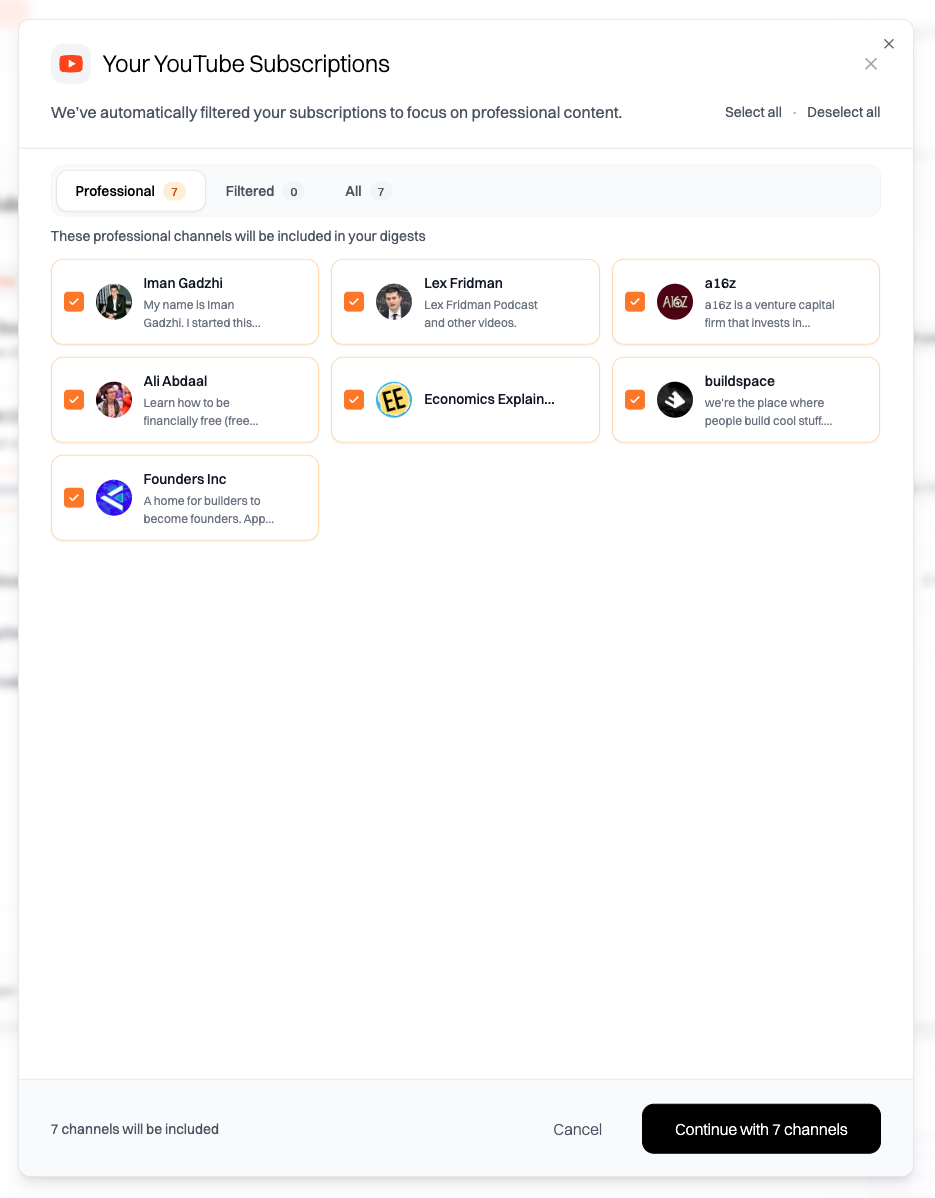 **How to add:**
1. Create a YouTube block in your digest
2. Connect your YouTube account for one-click import of all subscriptions
3. Or paste channel URLs directly
**Management:**
* Filter out Shorts if desired
* Videos with unavailable transcripts are automatically filtered
We plan to add more management tools for YouTube sources in the future.
### RSS Sources
Blogs, news sites, and any website with an RSS feed.
**How to add:**
1. Create a YouTube block in your digest
2. Connect your YouTube account for one-click import of all subscriptions
3. Or paste channel URLs directly
**Management:**
* Filter out Shorts if desired
* Videos with unavailable transcripts are automatically filtered
We plan to add more management tools for YouTube sources in the future.
### RSS Sources
Blogs, news sites, and any website with an RSS feed.
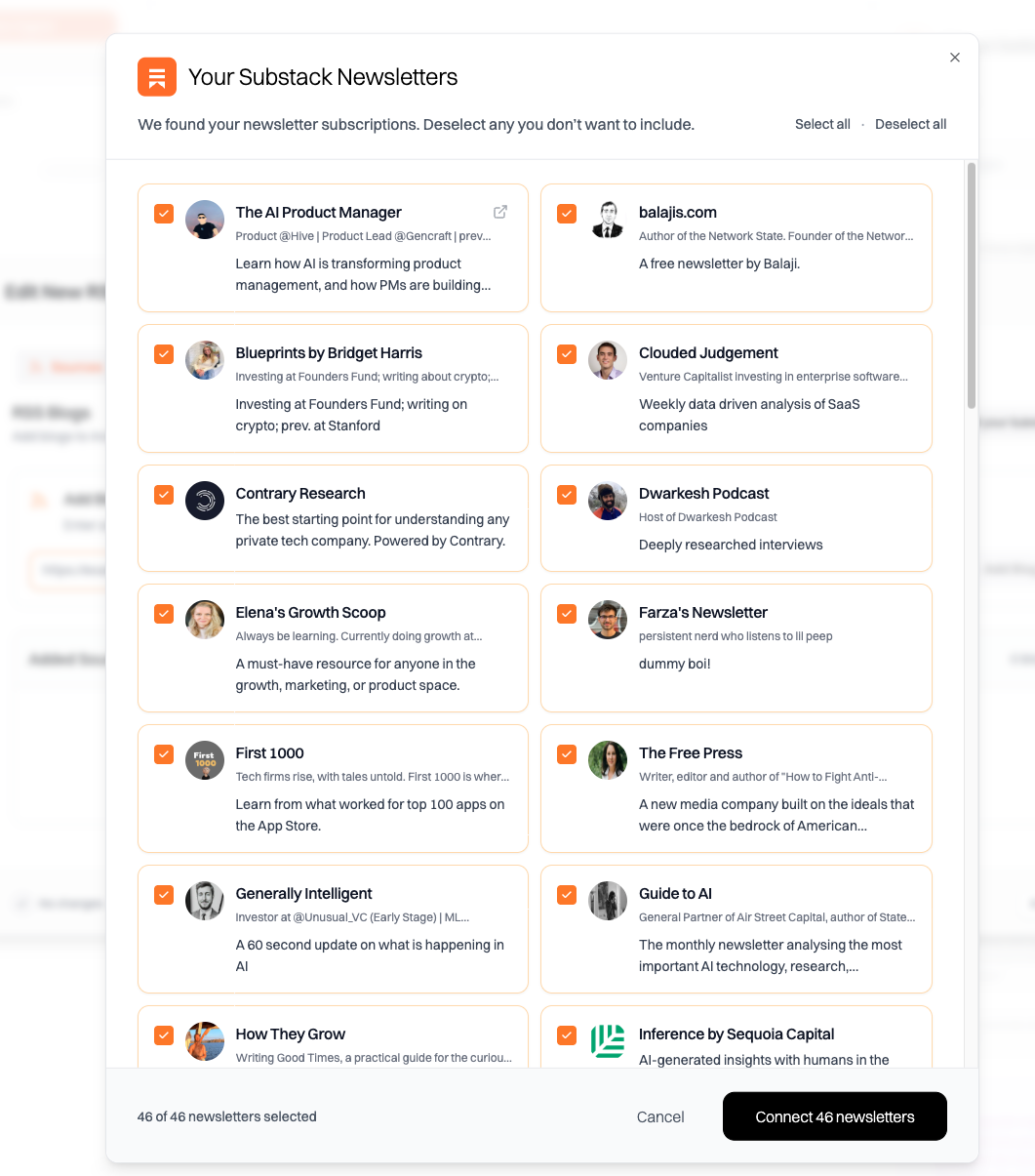 **How to add:**
1. Create an RSS block in your digest
2. Enter a website URL - Summate tries to auto-detect the RSS feed
3. Or paste the RSS feed URL directly if auto-detection doesn't work
**Management:**
* Short content (less than 10 words) is automatically filtered
We plan to add more management tools for RSS sources in the future.
## Managing Email Sources
Email sources have the most management tools available for controlling what appears in your digests.
### Managing Senders
When a new newsletter arrives in your [Summate Inbox](/concepts/inbox), it's automatically available as a source.
Check your [Inbox](/concepts/inbox) for newsletter senders
Add senders to Email blocks in your digests
If spam newsletters appear, block them with one click
Focus on quality newsletters. If low-value content makes it through your
forwarding filters, block those senders immediately to keep your Inbox clean.
### Source States
* **Active** - All newsletter senders received in your Inbox (default state)
* **Blocked** - Spam senders you've blocked that won't appear in your digests or Inbox
## Source Quality
We recommend monitoring high-quality sources only, not spam or low-value
content. Quality sources lead to better digests and more efficient use of your
AI credits.
## Best Practices
Begin with 5-10 high-quality sources per block and expand gradually
Check your Inbox weekly and remove inactive sources monthly
Block low-quality senders immediately to keep your Inbox clean
Group related sources together in the same block for better organization
## Troubleshooting
If newsletters aren't showing up, check the [Inbox page](/concepts/inbox) for common troubleshooting patterns and setup guidance.
{" "}
* Verify the channel is actively publishing new content - Check if videos have
transcripts available (videos without transcripts are filtered)
* Verify the website still has an active RSS feed
* Try finding and entering the RSS feed URL directly
* Check if the website is still publishing new content
## Next Steps
Configure your email forwarding
Add sources to your blocks
Create your first digest
**How to add:**
1. Create an RSS block in your digest
2. Enter a website URL - Summate tries to auto-detect the RSS feed
3. Or paste the RSS feed URL directly if auto-detection doesn't work
**Management:**
* Short content (less than 10 words) is automatically filtered
We plan to add more management tools for RSS sources in the future.
## Managing Email Sources
Email sources have the most management tools available for controlling what appears in your digests.
### Managing Senders
When a new newsletter arrives in your [Summate Inbox](/concepts/inbox), it's automatically available as a source.
Check your [Inbox](/concepts/inbox) for newsletter senders
Add senders to Email blocks in your digests
If spam newsletters appear, block them with one click
Focus on quality newsletters. If low-value content makes it through your
forwarding filters, block those senders immediately to keep your Inbox clean.
### Source States
* **Active** - All newsletter senders received in your Inbox (default state)
* **Blocked** - Spam senders you've blocked that won't appear in your digests or Inbox
## Source Quality
We recommend monitoring high-quality sources only, not spam or low-value
content. Quality sources lead to better digests and more efficient use of your
AI credits.
## Best Practices
Begin with 5-10 high-quality sources per block and expand gradually
Check your Inbox weekly and remove inactive sources monthly
Block low-quality senders immediately to keep your Inbox clean
Group related sources together in the same block for better organization
## Troubleshooting
If newsletters aren't showing up, check the [Inbox page](/concepts/inbox) for common troubleshooting patterns and setup guidance.
{" "}
* Verify the channel is actively publishing new content - Check if videos have
transcripts available (videos without transcripts are filtered)
* Verify the website still has an active RSS feed
* Try finding and entering the RSS feed URL directly
* Check if the website is still publishing new content
## Next Steps
Configure your email forwarding
Add sources to your blocks
Create your first digest