> ## Documentation Index
> Fetch the complete documentation index at: https://docs.summate.io/llms.txt
> Use this file to discover all available pages before exploring further.
# Inbox
> Your personal inbox for newsletters
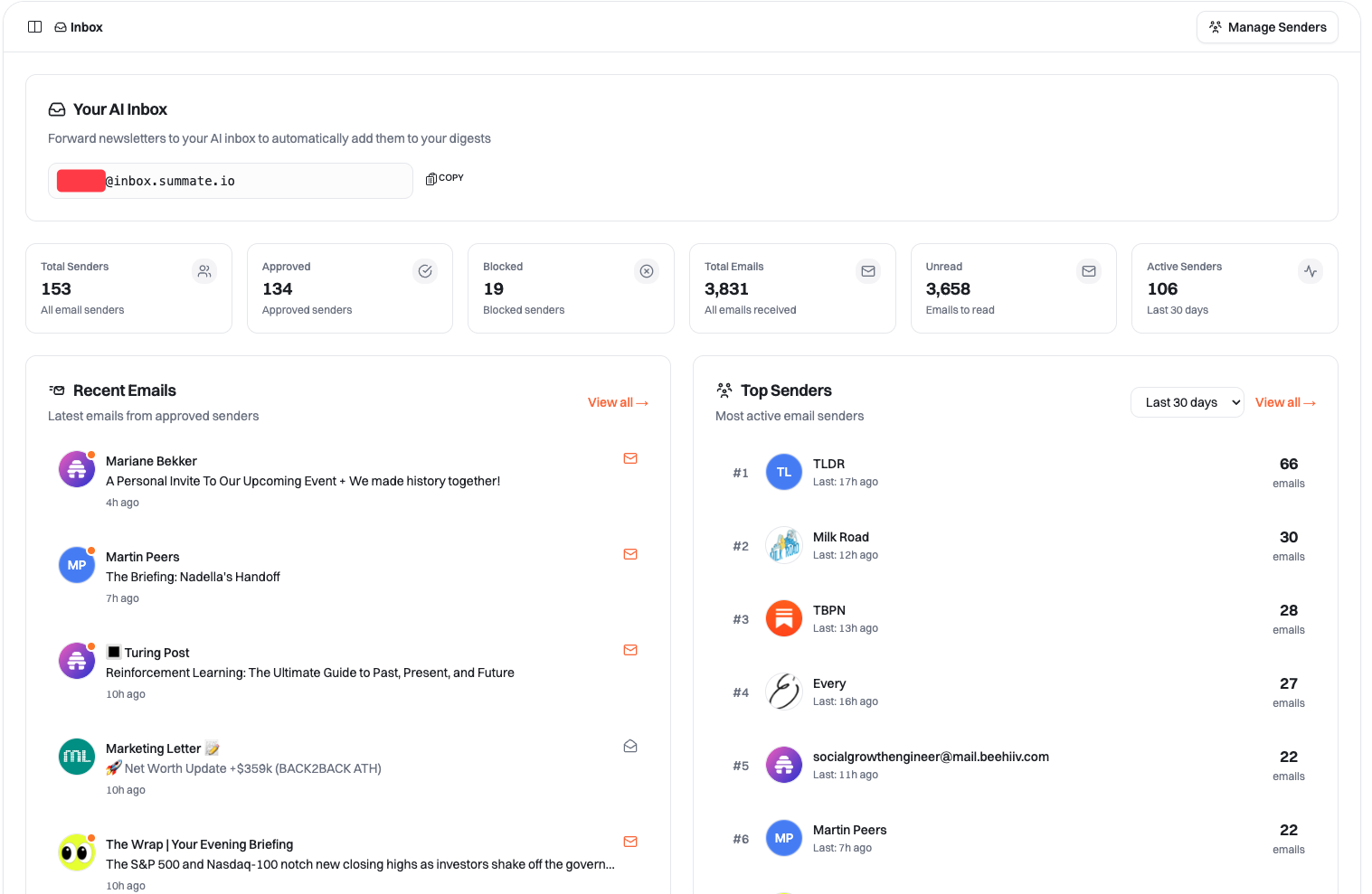
Your Summate Inbox is a unique email address that collects newsletters for your digests while keeping your personal emails private.
 ## Setting Up Your Inbox
### Create Your Inbox Address
Every Summate user gets a unique inbox address in the format:
```
username@inbox.summate.io
```
You can only create your inbox address **once**, so choose a good username! This becomes your permanent address for receiving newsletters.
### Start Receiving Newsletters
Once you have your inbox address, you have two options:
**Best for:** Existing newsletter subscriptions
Set up automatic forwarding from your email provider to your Summate Inbox. This is the recommended approach and takes about 5 minutes.
Follow our step-by-step guide for Gmail, Outlook, iCloud, and more
**Benefits:**
* Keep all existing subscriptions
* No need to re-subscribe
* Works with any email provider
**Best for:** New newsletter subscriptions
When signing up for new newsletters, use your Summate Inbox address directly:
1. Find a newsletter you want to subscribe to
2. Enter `username@inbox.summate.io` as your email
3. Newsletters arrive directly in your Summate Inbox
**Benefits:**
* Keeps newsletters separate from personal email
* No forwarding setup needed
* Clean inbox from day one
## Why Forwarding Instead of OAuth?
**We chose email forwarding for three key reasons:**
1. **You control what we see** - Only emails you explicitly forward reach Summate. Your personal emails, banking statements, and private conversations stay completely private.
2. **Universal compatibility** - Works with every email provider (Gmail, Outlook, iCloud, ProtonMail, corporate emails) without special integrations or permissions.
3. **No account access** - We never have access to your email account or password. We can't read emails you don't forward to us.
## Using Your Inbox
Access your inbox at [summate.io/v2/inbox](https://summate.io/v2/inbox?ref=docs.summate.io) to view and manage your newsletters.
### Dashboard Overview
The dashboard provides a quick overview of your inbox activity:
## Setting Up Your Inbox
### Create Your Inbox Address
Every Summate user gets a unique inbox address in the format:
```
username@inbox.summate.io
```
You can only create your inbox address **once**, so choose a good username! This becomes your permanent address for receiving newsletters.
### Start Receiving Newsletters
Once you have your inbox address, you have two options:
**Best for:** Existing newsletter subscriptions
Set up automatic forwarding from your email provider to your Summate Inbox. This is the recommended approach and takes about 5 minutes.
Follow our step-by-step guide for Gmail, Outlook, iCloud, and more
**Benefits:**
* Keep all existing subscriptions
* No need to re-subscribe
* Works with any email provider
**Best for:** New newsletter subscriptions
When signing up for new newsletters, use your Summate Inbox address directly:
1. Find a newsletter you want to subscribe to
2. Enter `username@inbox.summate.io` as your email
3. Newsletters arrive directly in your Summate Inbox
**Benefits:**
* Keeps newsletters separate from personal email
* No forwarding setup needed
* Clean inbox from day one
## Why Forwarding Instead of OAuth?
**We chose email forwarding for three key reasons:**
1. **You control what we see** - Only emails you explicitly forward reach Summate. Your personal emails, banking statements, and private conversations stay completely private.
2. **Universal compatibility** - Works with every email provider (Gmail, Outlook, iCloud, ProtonMail, corporate emails) without special integrations or permissions.
3. **No account access** - We never have access to your email account or password. We can't read emails you don't forward to us.
## Using Your Inbox
Access your inbox at [summate.io/v2/inbox](https://summate.io/v2/inbox?ref=docs.summate.io) to view and manage your newsletters.
### Dashboard Overview
The dashboard provides a quick overview of your inbox activity:
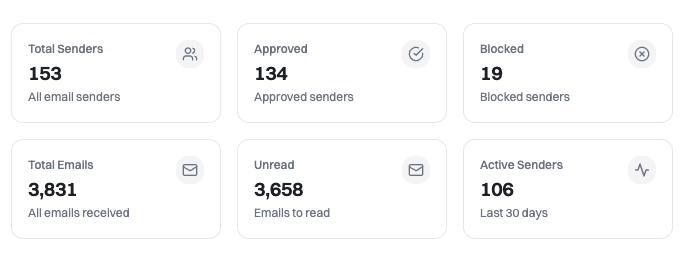 **Statistics shown:**
* **Total Senders** - All email senders you've received
* **Approved** - Senders available as sources (default for all)
* **Blocked** - Spam senders you've blocked
* **Total Emails** - All newsletters received
* **Unread** - Emails you haven't opened yet
* **Active Senders** - Senders who sent emails recently
**Quick access sections:**
* **Recent Emails** - Latest newsletters from approved senders
* **Top Senders** - Most active newsletter sources
### Emails View
View and read all your newsletters in one place.
**Statistics shown:**
* **Total Senders** - All email senders you've received
* **Approved** - Senders available as sources (default for all)
* **Blocked** - Spam senders you've blocked
* **Total Emails** - All newsletters received
* **Unread** - Emails you haven't opened yet
* **Active Senders** - Senders who sent emails recently
**Quick access sections:**
* **Recent Emails** - Latest newsletters from approved senders
* **Top Senders** - Most active newsletter sources
### Emails View
View and read all your newsletters in one place.
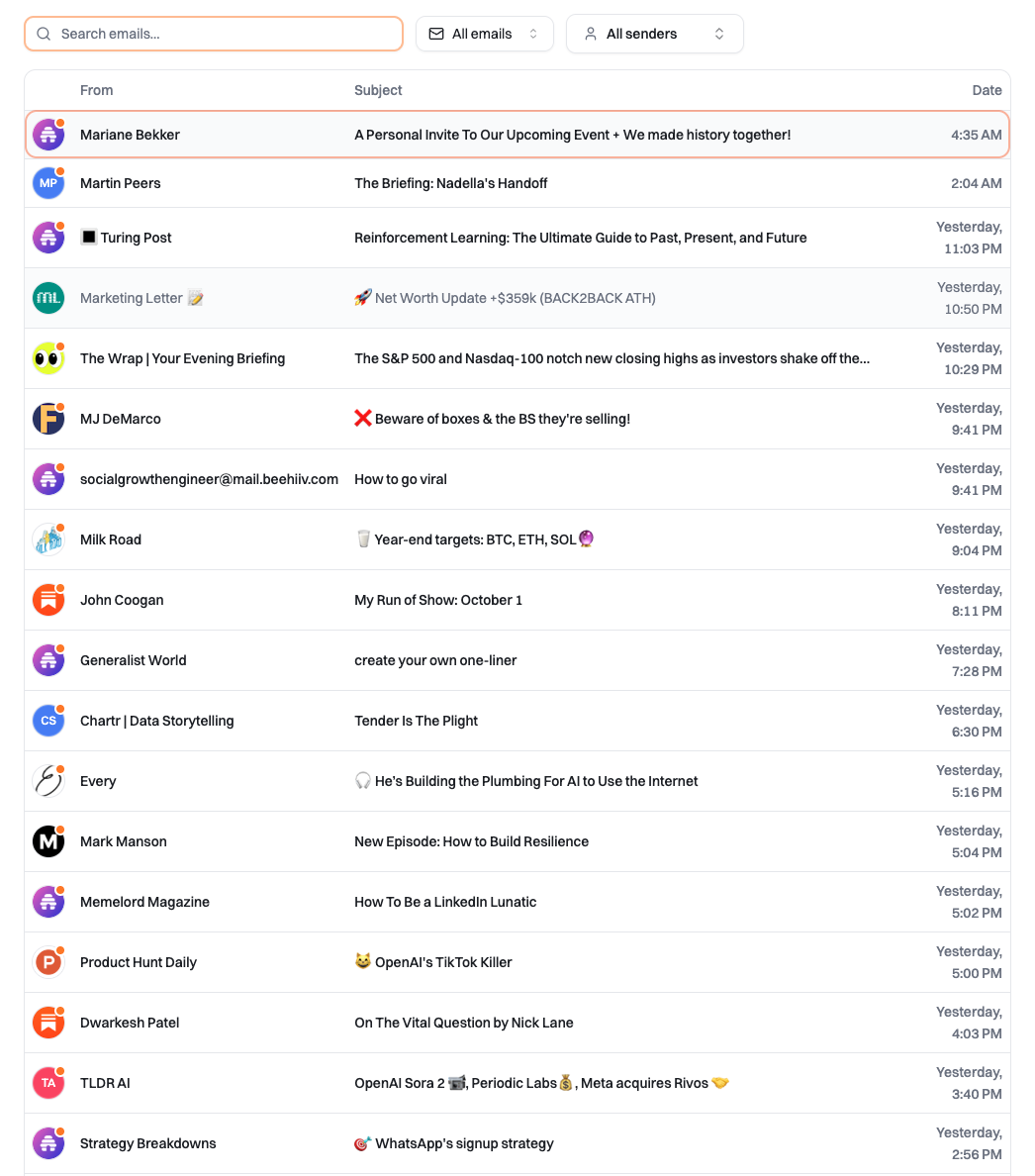 **Features:**
* Search emails by subject or sender
* Filter by specific senders
* Read full email content
* See when emails arrived
* Track unread status
Use the Emails view to read newsletters directly in Summate before adding them to your digests. This helps you verify which sources are worth including.
### Senders Management
Manage all your email senders and control what appears in your digests.
**Features:**
* Search emails by subject or sender
* Filter by specific senders
* Read full email content
* See when emails arrived
* Track unread status
Use the Emails view to read newsletters directly in Summate before adding them to your digests. This helps you verify which sources are worth including.
### Senders Management
Manage all your email senders and control what appears in your digests.
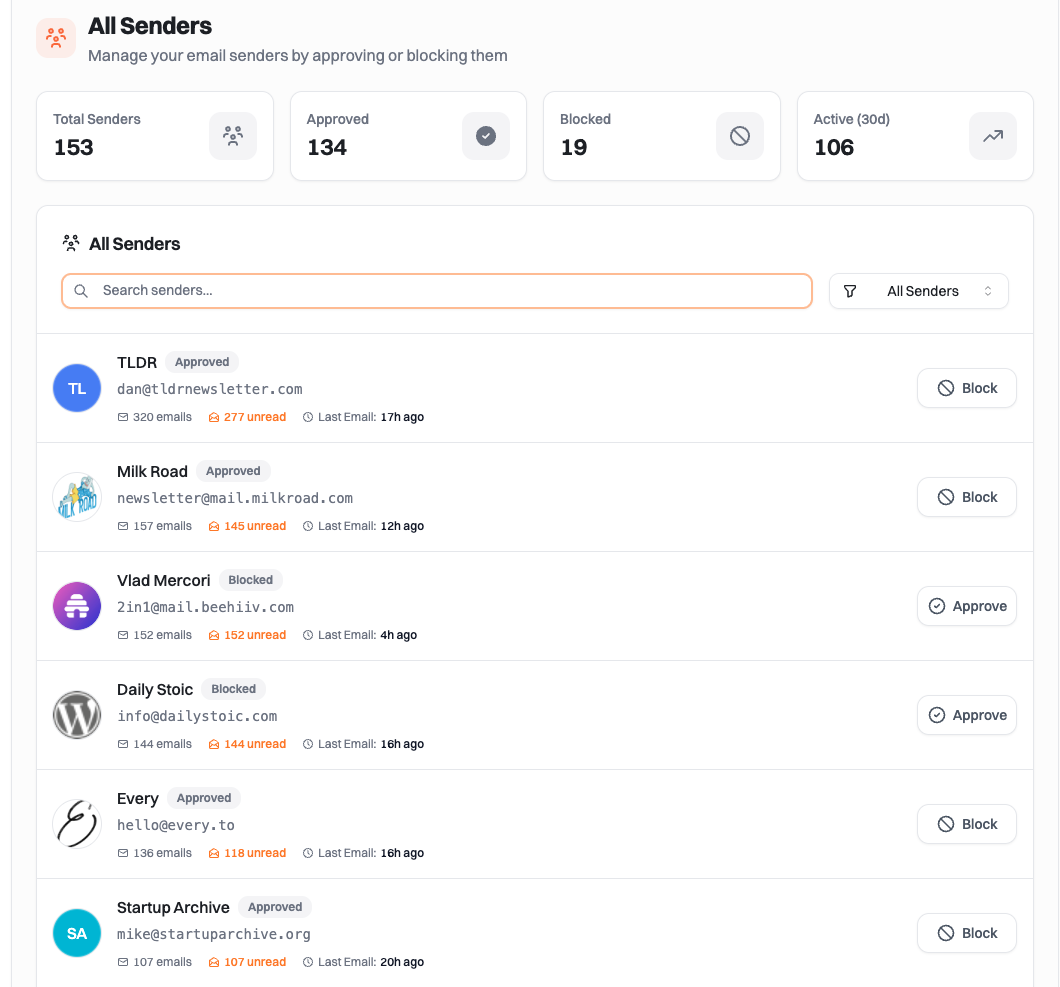 **Sender states:**
* **Approved** - Default state for all received newsletters. Available as sources in Email blocks.
* **Blocked** - Spam senders you've blocked. Won't appear in digests or as source options.
**Actions:**
* **Block** - Remove spam senders with one click
* **Approve** - Restore blocked senders if needed
* View email count and last received date for each sender
All senders are approved by default. You only need to take action to block spam or unwanted senders.
## Adding Newsletters to Digests
Once you have newsletters in your Inbox, add them to your digests:
Go to your digests and create a new one or edit an existing digest
Add an Email block to your digest
Choose which approved senders to include in this block, or use "Include All" to add all newsletters
Activate your digest to start receiving summaries on schedule
Learn more about [adding sources to blocks](/concepts/blocks).
## Best Practices
Don't forward everything - only newsletters. This protects your privacy and keeps your inbox relevant.
You can only create your inbox once, so pick a username you'll be happy with long-term.
Check your inbox regularly for new senders and block any spam immediately.
Start by forwarding a few newsletters to test the setup before adding all your subscriptions.
## Troubleshooting
**Check these common issues:**
* Verify your forwarding rules are active in your email provider
* Make sure you're using the correct inbox address
* For Outlook/Microsoft 365 users: Check that external forwarding is enabled (see our [auto-forwarding guide](/guides/auto-forwarding/outlook))
* Check your email provider's spam folder - newsletters might be blocked before forwarding
* Wait a few minutes - emails can take up to 5 minutes to appear
Forwarded emails typically appear in your inbox within seconds to a few minutes of being forwarded.
Technically yes, but we **strongly recommend** using filters to forward only newsletters. This protects your privacy and keeps your sources relevant. See our [auto-forwarding guide](/guides/auto-forwarding/filter-tips) for filter setup instructions.
Blocked senders remain visible in the Senders view (marked as "Blocked") but:
* Won't appear as options in Email blocks
* Won't show up in Recent Emails or Top Senders
* Won't be included in any digests
You can approve them again if you change your mind.
Yes. We store emails securely for up to 1 year to enable the reading experience and digest generation. You can delete individual emails or all data anytime from your inbox at [summate.io/v2/inbox](https://summate.io/v2/inbox?ref=docs.summate.io).
No. You can only create your inbox address once, so choose carefully! This is to ensure address uniqueness and prevent confusion.
## Next Steps
5-minute setup guide for all email providers
Create Email blocks with your newsletters
Learn about different source types
**Sender states:**
* **Approved** - Default state for all received newsletters. Available as sources in Email blocks.
* **Blocked** - Spam senders you've blocked. Won't appear in digests or as source options.
**Actions:**
* **Block** - Remove spam senders with one click
* **Approve** - Restore blocked senders if needed
* View email count and last received date for each sender
All senders are approved by default. You only need to take action to block spam or unwanted senders.
## Adding Newsletters to Digests
Once you have newsletters in your Inbox, add them to your digests:
Go to your digests and create a new one or edit an existing digest
Add an Email block to your digest
Choose which approved senders to include in this block, or use "Include All" to add all newsletters
Activate your digest to start receiving summaries on schedule
Learn more about [adding sources to blocks](/concepts/blocks).
## Best Practices
Don't forward everything - only newsletters. This protects your privacy and keeps your inbox relevant.
You can only create your inbox once, so pick a username you'll be happy with long-term.
Check your inbox regularly for new senders and block any spam immediately.
Start by forwarding a few newsletters to test the setup before adding all your subscriptions.
## Troubleshooting
**Check these common issues:**
* Verify your forwarding rules are active in your email provider
* Make sure you're using the correct inbox address
* For Outlook/Microsoft 365 users: Check that external forwarding is enabled (see our [auto-forwarding guide](/guides/auto-forwarding/outlook))
* Check your email provider's spam folder - newsletters might be blocked before forwarding
* Wait a few minutes - emails can take up to 5 minutes to appear
Forwarded emails typically appear in your inbox within seconds to a few minutes of being forwarded.
Technically yes, but we **strongly recommend** using filters to forward only newsletters. This protects your privacy and keeps your sources relevant. See our [auto-forwarding guide](/guides/auto-forwarding/filter-tips) for filter setup instructions.
Blocked senders remain visible in the Senders view (marked as "Blocked") but:
* Won't appear as options in Email blocks
* Won't show up in Recent Emails or Top Senders
* Won't be included in any digests
You can approve them again if you change your mind.
Yes. We store emails securely for up to 1 year to enable the reading experience and digest generation. You can delete individual emails or all data anytime from your inbox at [summate.io/v2/inbox](https://summate.io/v2/inbox?ref=docs.summate.io).
No. You can only create your inbox address once, so choose carefully! This is to ensure address uniqueness and prevent confusion.
## Next Steps
5-minute setup guide for all email providers
Create Email blocks with your newsletters
Learn about different source types