> ## Documentation Index
> Fetch the complete documentation index at: https://docs.summate.io/llms.txt
> Use this file to discover all available pages before exploring further.
# Digests
> Scheduled AI summaries from your content sources
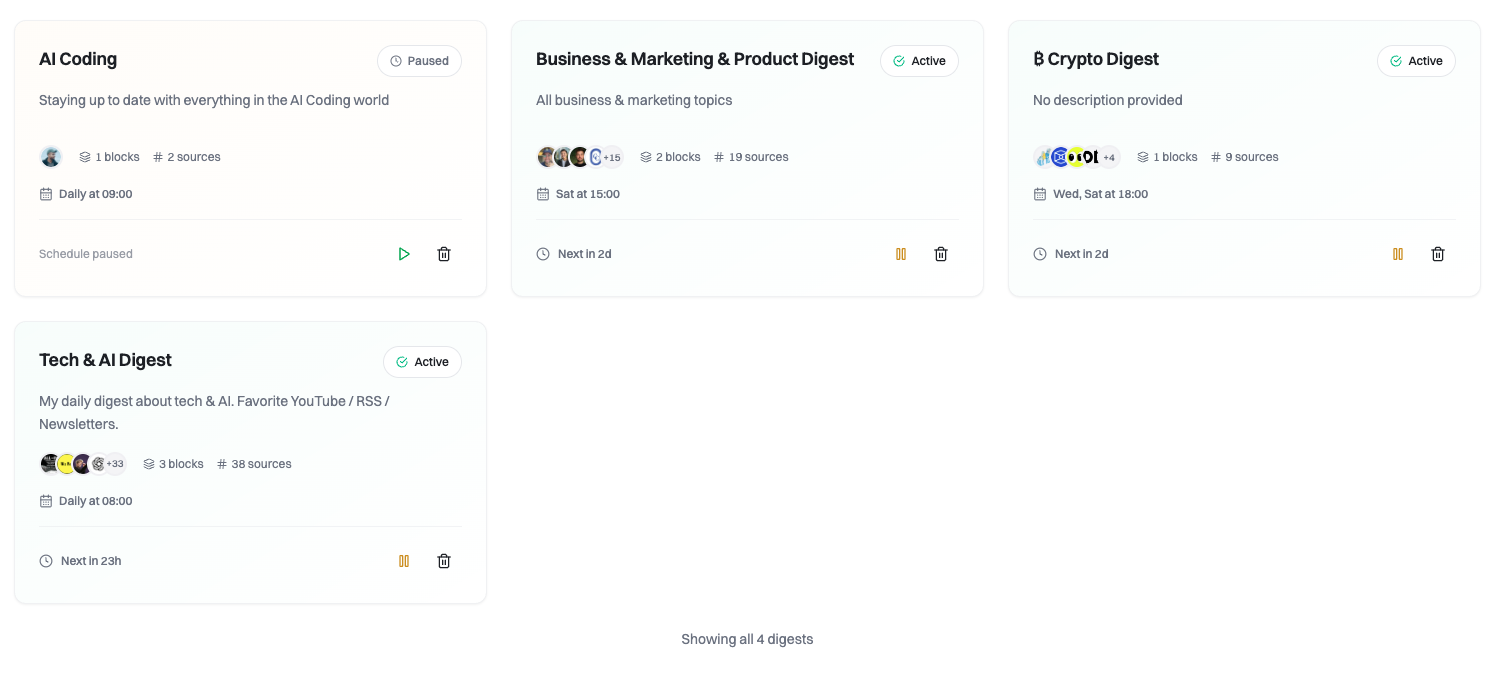
A digest is your personalized content report based on what happened during a specific timeframe. Think of it as a custom newspaper that automatically assembles summaries from all your sources and delivers them on your schedule.
 ## What is a Digest?
Each digest is a collection of AI-generated summaries from your content sources during a particular time period. Whether it's daily tech news, weekly industry updates, or weekend reading recommendations, digests bring everything together in one place.
Digests are composed of multiple [blocks](/concepts/blocks). Each block pulls content from different sources and can have its own custom instructions for summarization.
## How Digests Work
Summate monitors your sources and collects new content since your last digest was sent.
Our AI summarizes each piece of content according to your custom instructions at the block, digest, or account level.
All summaries are compiled into a single digest at your scheduled time.
Your digest is delivered via email and made available on the web for reading.
## Scheduling Your Digests
Control when and how often you receive digests:
Receive your digest every day at a chosen time. You can even set up multiple daily digests - just make sure they're at least 4 hours apart.
**Example:** Morning brief at 7 AM, afternoon updates at 2 PM
Choose specific days of the week and a time to receive your digest.
**Example:** Monday, Wednesday, Friday at 9 AM
Select which days of the month to receive your digest.
**Example:** 1st and 15th of each month at 10 AM
Set your timezone during onboarding or in [account settings](/account) to ensure digests arrive at the right time. Delivery times automatically adjust for daylight saving time.
## Building Your Digest
Each digest is made up of [blocks](/concepts/blocks) that pull content from your sources:
Summaries from newsletters received in your [Summate Inbox](/concepts/inbox)
Summaries from your subscribed YouTube channels
Summaries from blogs and websites with RSS feeds
Combine multiple block types in a single digest
You can create multiple blocks of the same type within one digest. This is useful for grouping different sources or applying different custom instructions.
## Reading Your Digests
Digests are automatically sent to your email inbox at the scheduled time. Read them in any email client.
Access all your digests at summate.io/v2 for a better reading experience with full control over presentation.
For the best reading experience, use the web reader. Email clients can be restrictive in how they display content, while the web reader gives you full access to all features and formatting.
## Activating Digests
By default, new digests are created in **draft** state. You must activate them before they start sending.
When you're ready to start receiving a digest:
1. Review your digest settings and blocks
2. Click the **Activate** button
3. Your first digest will be generated at the next scheduled time
## Organization Patterns
Here are some common ways to organize your digests:
Create separate digests for different interests or areas:
* **Tech News** - Daily at 8 AM with AI, development, and startup sources
* **Market Updates** - Weekdays at 6 AM with finance and business sources
* **Weekend Reads** - Saturdays at 10 AM with long-form articles and essays
Organize based on when and why you read:
* **Morning Brief** - Everything important to start your day
* **Weekly Roundup** - Comprehensive review of the week's content
* **Learning Digest** - Educational content on specific skills
Group similar content types together:
* **Newsletter Digest** - All email subscriptions in one place
* **YouTube Catchup** - Video summaries from channels you follow
* **Blog Reader** - RSS feeds from favorite blogs
## Managing Digests
Control your digests from the dashboard:
Temporarily stop delivery without losing your settings
Modify blocks, schedule, or custom instructions anytime
Permanently remove a digest you no longer need
## Best Practices
Create one specific digest first, then expand as you learn what works
Adjust delivery times based on when you actually read your digests
Leverage [AI features](/concepts/ai) to personalize summaries
Check your digests weekly to refine sources and settings
## Next Steps
Learn how to add content blocks to your digest
Understand how to add and organize content sources
Customize how AI summarizes your content
## What is a Digest?
Each digest is a collection of AI-generated summaries from your content sources during a particular time period. Whether it's daily tech news, weekly industry updates, or weekend reading recommendations, digests bring everything together in one place.
Digests are composed of multiple [blocks](/concepts/blocks). Each block pulls content from different sources and can have its own custom instructions for summarization.
## How Digests Work
Summate monitors your sources and collects new content since your last digest was sent.
Our AI summarizes each piece of content according to your custom instructions at the block, digest, or account level.
All summaries are compiled into a single digest at your scheduled time.
Your digest is delivered via email and made available on the web for reading.
## Scheduling Your Digests
Control when and how often you receive digests:
Receive your digest every day at a chosen time. You can even set up multiple daily digests - just make sure they're at least 4 hours apart.
**Example:** Morning brief at 7 AM, afternoon updates at 2 PM
Choose specific days of the week and a time to receive your digest.
**Example:** Monday, Wednesday, Friday at 9 AM
Select which days of the month to receive your digest.
**Example:** 1st and 15th of each month at 10 AM
Set your timezone during onboarding or in [account settings](/account) to ensure digests arrive at the right time. Delivery times automatically adjust for daylight saving time.
## Building Your Digest
Each digest is made up of [blocks](/concepts/blocks) that pull content from your sources:
Summaries from newsletters received in your [Summate Inbox](/concepts/inbox)
Summaries from your subscribed YouTube channels
Summaries from blogs and websites with RSS feeds
Combine multiple block types in a single digest
You can create multiple blocks of the same type within one digest. This is useful for grouping different sources or applying different custom instructions.
## Reading Your Digests
Digests are automatically sent to your email inbox at the scheduled time. Read them in any email client.
Access all your digests at summate.io/v2 for a better reading experience with full control over presentation.
For the best reading experience, use the web reader. Email clients can be restrictive in how they display content, while the web reader gives you full access to all features and formatting.
## Activating Digests
By default, new digests are created in **draft** state. You must activate them before they start sending.
When you're ready to start receiving a digest:
1. Review your digest settings and blocks
2. Click the **Activate** button
3. Your first digest will be generated at the next scheduled time
## Organization Patterns
Here are some common ways to organize your digests:
Create separate digests for different interests or areas:
* **Tech News** - Daily at 8 AM with AI, development, and startup sources
* **Market Updates** - Weekdays at 6 AM with finance and business sources
* **Weekend Reads** - Saturdays at 10 AM with long-form articles and essays
Organize based on when and why you read:
* **Morning Brief** - Everything important to start your day
* **Weekly Roundup** - Comprehensive review of the week's content
* **Learning Digest** - Educational content on specific skills
Group similar content types together:
* **Newsletter Digest** - All email subscriptions in one place
* **YouTube Catchup** - Video summaries from channels you follow
* **Blog Reader** - RSS feeds from favorite blogs
## Managing Digests
Control your digests from the dashboard:
Temporarily stop delivery without losing your settings
Modify blocks, schedule, or custom instructions anytime
Permanently remove a digest you no longer need
## Best Practices
Create one specific digest first, then expand as you learn what works
Adjust delivery times based on when you actually read your digests
Leverage [AI features](/concepts/ai) to personalize summaries
Check your digests weekly to refine sources and settings
## Next Steps
Learn how to add content blocks to your digest
Understand how to add and organize content sources
Customize how AI summarizes your content