> ## Documentation Index
> Fetch the complete documentation index at: https://docs.summate.io/llms.txt
> Use this file to discover all available pages before exploring further.
# Blocks
> Building units of your digests
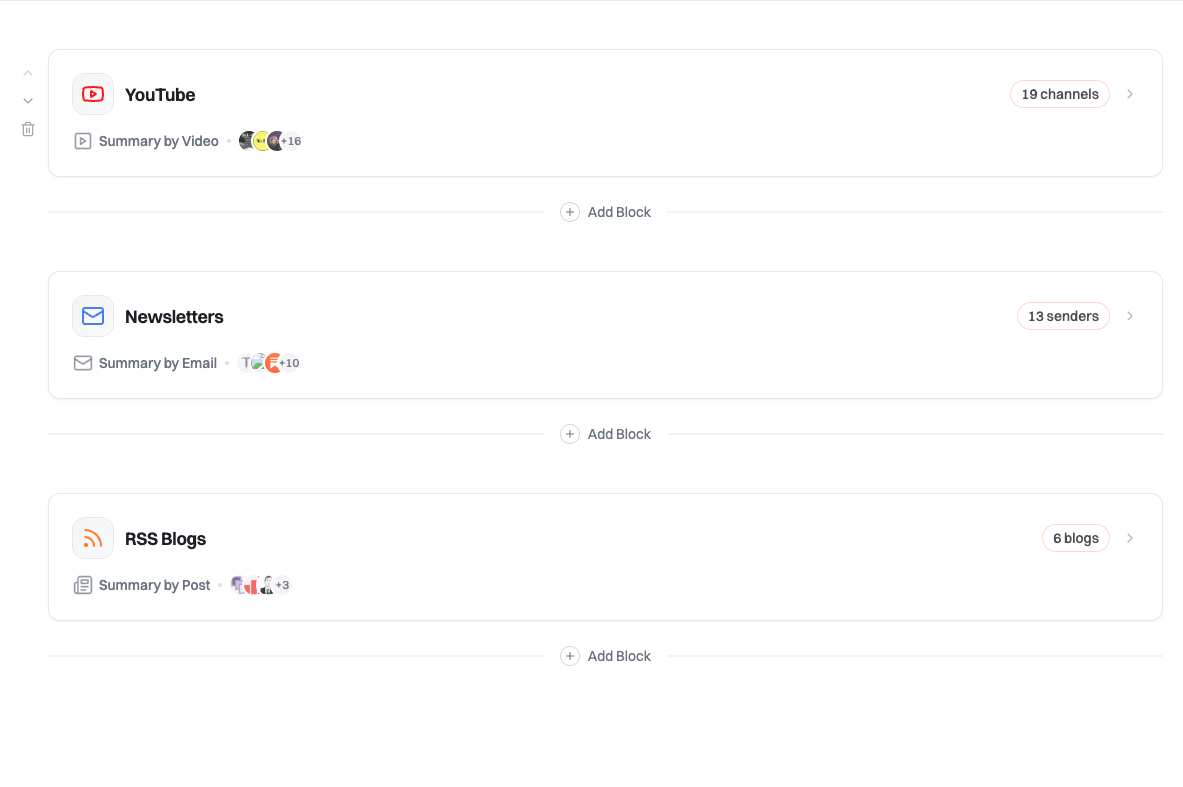
Blocks are the building units of your digests. Each block pulls content from specific sources and generates AI summaries based on your custom instructions.
 ## What are Blocks?
Think of blocks as content sections within your digest. Each digest is composed of multiple blocks, and each block can pull from different sources. This modular approach lets you mix newsletters, YouTube videos, and RSS feeds in a single digest while customizing how each section is summarized.
You can create multiple blocks of the same type within a digest. This is useful for grouping different sources or applying different custom instructions to each group.
## Block Types
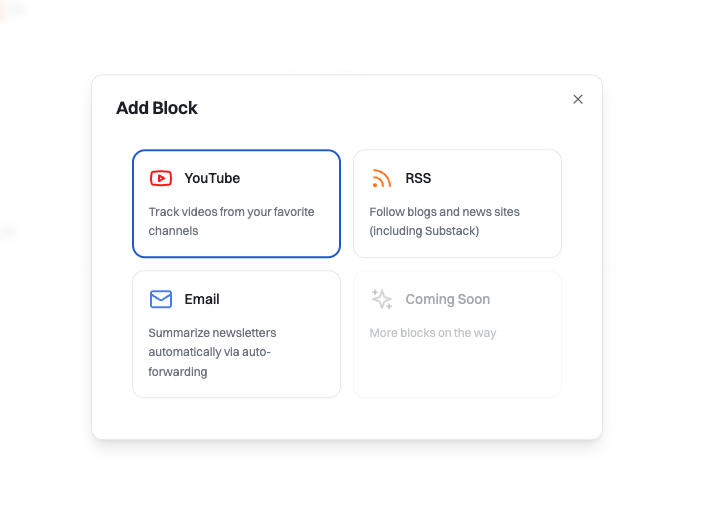
Summate offers three types of blocks to organize different content sources:
## What are Blocks?
Think of blocks as content sections within your digest. Each digest is composed of multiple blocks, and each block can pull from different sources. This modular approach lets you mix newsletters, YouTube videos, and RSS feeds in a single digest while customizing how each section is summarized.
You can create multiple blocks of the same type within a digest. This is useful for grouping different sources or applying different custom instructions to each group.
## Block Types
Summate offers three types of blocks to organize different content sources:
 ### Email Block
Pull content from newsletters received in your [Summate Inbox](/concepts/inbox).
### Email Block
Pull content from newsletters received in your [Summate Inbox](/concepts/inbox).
 Set up your [Summate Inbox](/concepts/inbox) and forward newsletters to it
Add an Email block to your digest
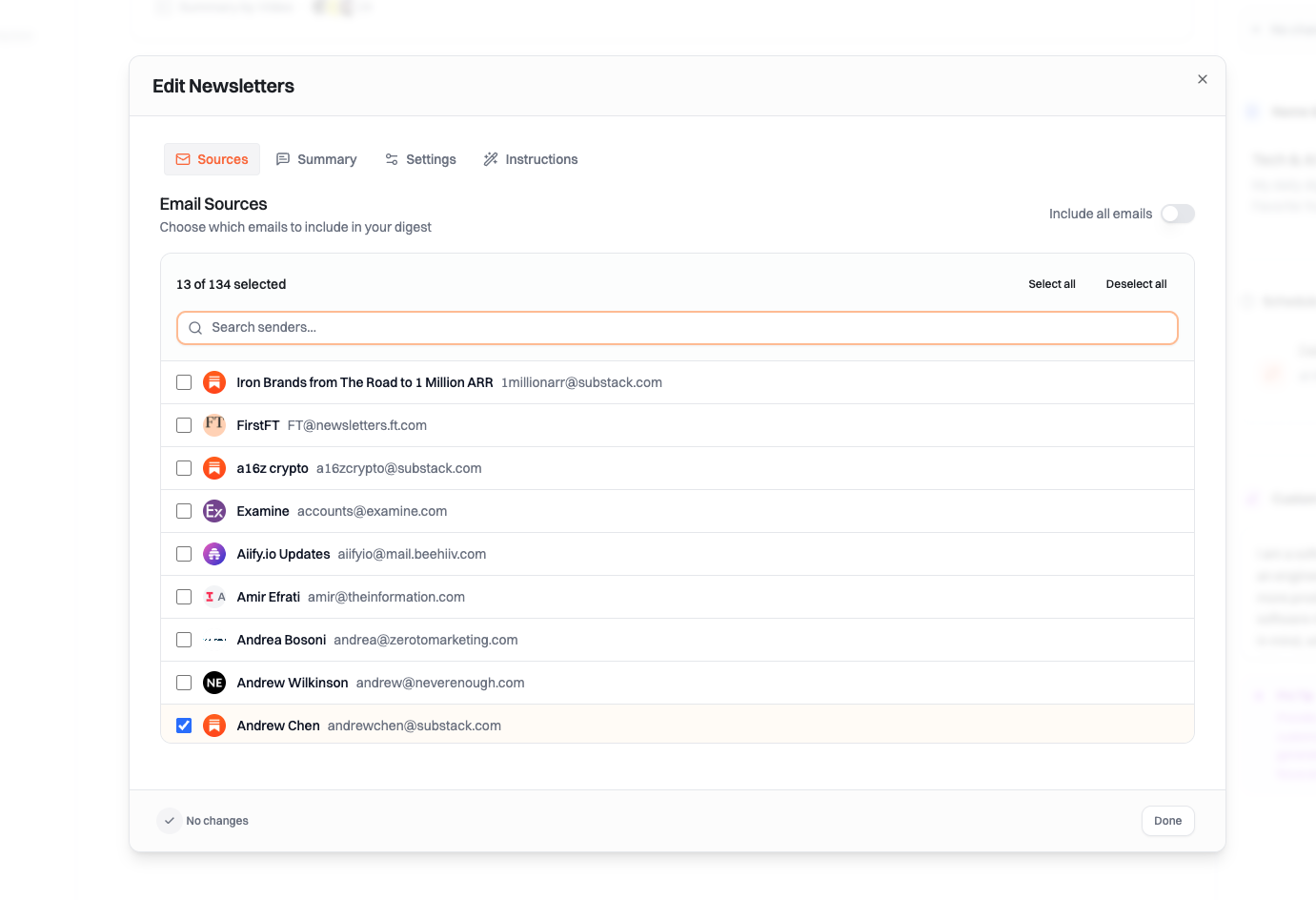
Choose which email senders to include
**Source Selection**
The block displays all **Active** email senders that have been received in your Inbox. Blocked senders are not shown.
Use the **"Include All"** option if you're just starting out. This automatically includes all newsletters received in your Inbox, making it easy to get started without manual selection.
**Content Processing**
* Only new emails since your last digest are included
* Inactive sources (no new content) won't appear in the digest
* Each email is summarized with a TLDR and key takeaways (learn about [AI summarization](/concepts/ai))
### YouTube Block
Summarize videos from YouTube channels you follow.
Set up your [Summate Inbox](/concepts/inbox) and forward newsletters to it
Add an Email block to your digest
Choose which email senders to include
**Source Selection**
The block displays all **Active** email senders that have been received in your Inbox. Blocked senders are not shown.
Use the **"Include All"** option if you're just starting out. This automatically includes all newsletters received in your Inbox, making it easy to get started without manual selection.
**Content Processing**
* Only new emails since your last digest are included
* Inactive sources (no new content) won't appear in the digest
* Each email is summarized with a TLDR and key takeaways (learn about [AI summarization](/concepts/ai))
### YouTube Block
Summarize videos from YouTube channels you follow.
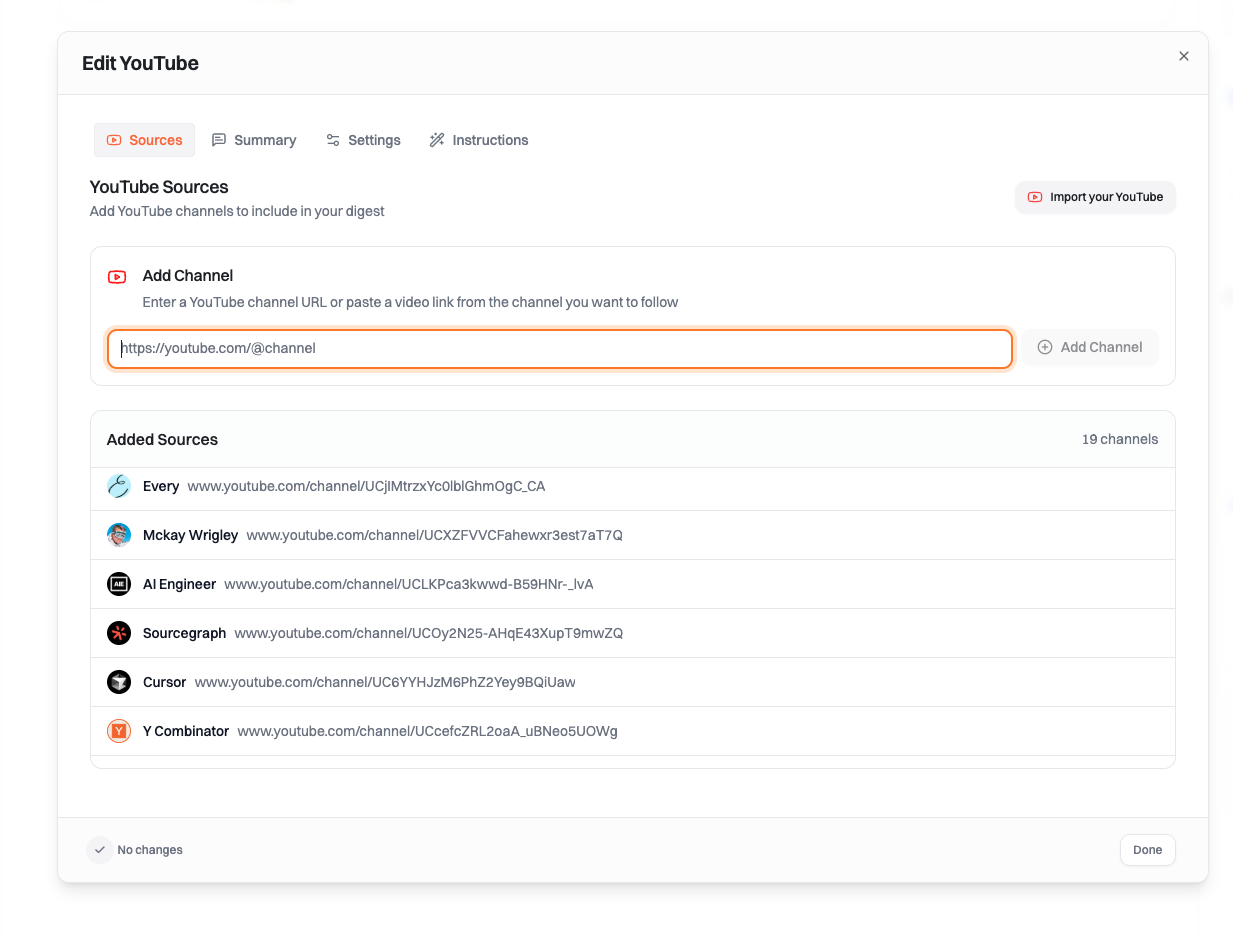 **Adding Channels**
Connect your YouTube account to import all your subscriptions at once
Paste channel URLs directly to add specific channels
**Filters**
* **Filter Shorts** - Exclude YouTube Shorts from your digest
* Videos are automatically filtered if transcripts can't be retrieved (blocked videos)
**Content Processing**
* Only new videos since your last digest are included
* Inactive channels (no new videos) won't appear in the digest
* Each video is summarized with key takeaways linked to relevant timestamps (learn about [AI summarization](/concepts/ai))
Click on any key takeaway to jump directly to the relevant timestamp in the video. Perfect for skipping to the parts that matter most to you.
### RSS Block
Aggregate content from blogs, news sites, and any website with an RSS feed.
**Adding Channels**
Connect your YouTube account to import all your subscriptions at once
Paste channel URLs directly to add specific channels
**Filters**
* **Filter Shorts** - Exclude YouTube Shorts from your digest
* Videos are automatically filtered if transcripts can't be retrieved (blocked videos)
**Content Processing**
* Only new videos since your last digest are included
* Inactive channels (no new videos) won't appear in the digest
* Each video is summarized with key takeaways linked to relevant timestamps (learn about [AI summarization](/concepts/ai))
Click on any key takeaway to jump directly to the relevant timestamp in the video. Perfect for skipping to the parts that matter most to you.
### RSS Block
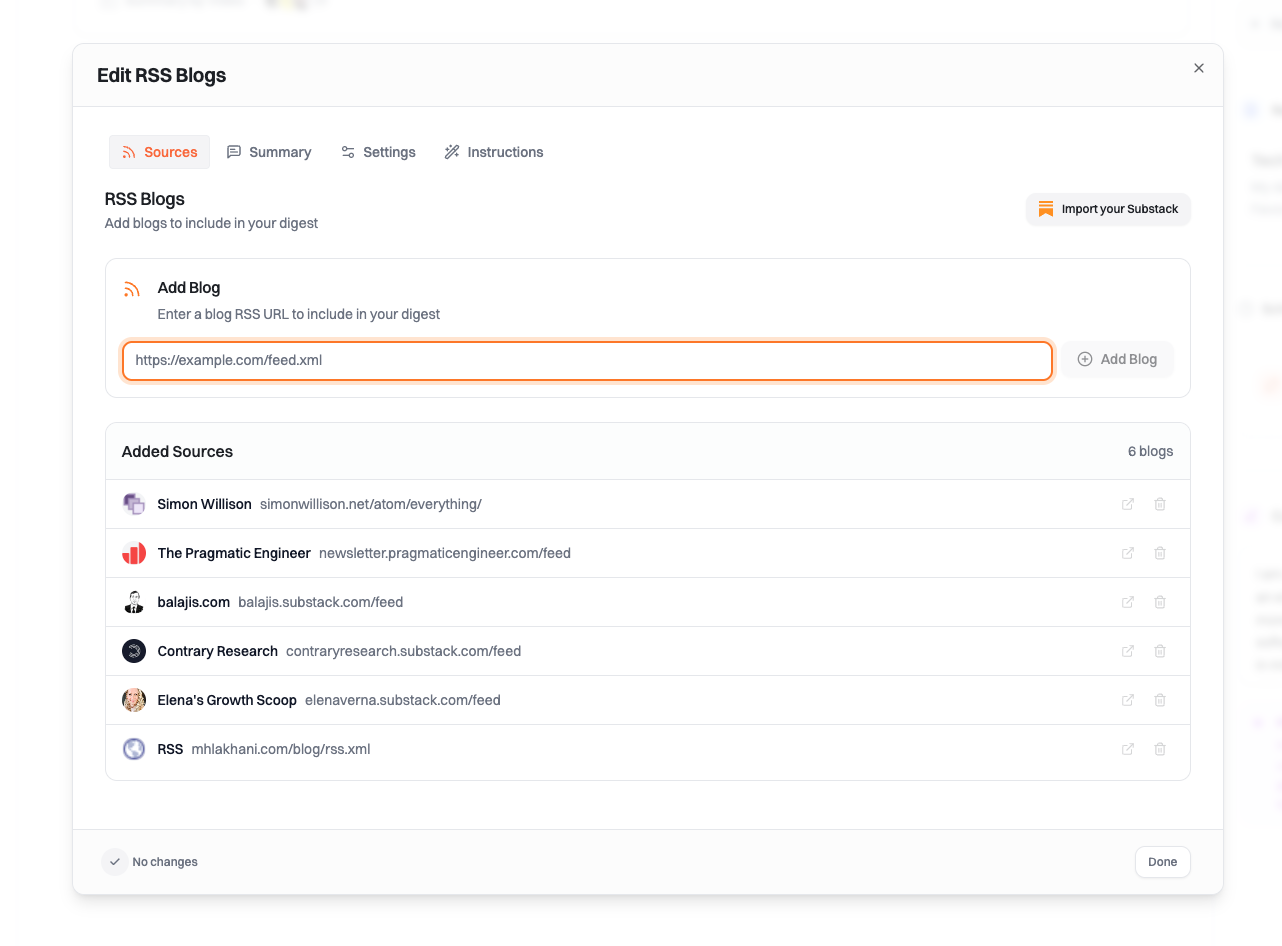
Aggregate content from blogs, news sites, and any website with an RSS feed.
 **Supported Feed Types**
Summate currently only supports RSS feeds that link to HTML pages (blog posts, articles, news sites).
**Not Supported:** Podcast feeds or any RSS feeds that link directly to media files (.mp3, .mp4, etc.) will be ignored and won't appear in your digest.
**Adding Sources**
Enter a website URL and Summate will try to automatically find the RSS feed.
If automatic detection doesn't work, find the RSS feed URL yourself (usually something like `website.com/feed` or `website.com/rss`) and paste it directly.
**Content Filtering**
By default, we filter out very short content (less than 10 words) to ensure you only get substantial articles and posts.
**Content Processing**
* Only new content since your last digest is included
* Inactive sources (no new posts) won't appear in the digest
* Each article is summarized with a TLDR and key takeaways (learn about [AI summarization](/concepts/ai))
Click on any key takeaway to jump to the exact paragraph in the original article where that information appears.
## Customizing Blocks
### Block Settings
Give your block a descriptive name to stay organized (e.g., "AI Newsletters", "Tech YouTube")
Add block-level custom instructions to personalize how AI summarizes this specific block's content
### Summarization Mode
Currently, all blocks use **Detailed Summaries**, which provide:
* **TLDR** - A brief overview of the content
* **Key Takeaways** - Specific points relevant to your custom instructions
We plan to add topic-based grouping to organize your summaries by themes and subjects automatically.
Learn more about customizing AI summaries in our [AI Personalization guide](/concepts/ai).
## Organizing Blocks
### Block Order
Use the up/down arrows to reorder blocks within your digest. Blocks appear in your digest in the order you arrange them.
**Priority Order**
* Most important sources first
* Time-sensitive content at the top
**Source Type Grouping**
* All newsletters together
* Then YouTube videos
* Then RSS feeds
**Topic-Based Organization**
* Group related content together
* Separate work vs. personal interests
**Reading Time**
* Quick reads first
* Longer content at the end
### Block Limits
There's no hard limit on the number of blocks per digest. However, keep in mind your monthly credit allocation (2000 credits) when planning your digests. Each newsletter/article costs 1 credit, and videos cost 1-3 credits depending on length.
## Best Practices
Begin with 2-3 blocks and expand as you understand what works for you
Use clear block names like "AI Research" or "Morning Tech News" for easy identification
Apply block-level instructions to personalize summaries for different content types
Check your digests weekly to add new sources and remove inactive ones
## Next Steps
Understand how digests work
Configure email forwarding for newsletters
Personalize your summaries
**Supported Feed Types**
Summate currently only supports RSS feeds that link to HTML pages (blog posts, articles, news sites).
**Not Supported:** Podcast feeds or any RSS feeds that link directly to media files (.mp3, .mp4, etc.) will be ignored and won't appear in your digest.
**Adding Sources**
Enter a website URL and Summate will try to automatically find the RSS feed.
If automatic detection doesn't work, find the RSS feed URL yourself (usually something like `website.com/feed` or `website.com/rss`) and paste it directly.
**Content Filtering**
By default, we filter out very short content (less than 10 words) to ensure you only get substantial articles and posts.
**Content Processing**
* Only new content since your last digest is included
* Inactive sources (no new posts) won't appear in the digest
* Each article is summarized with a TLDR and key takeaways (learn about [AI summarization](/concepts/ai))
Click on any key takeaway to jump to the exact paragraph in the original article where that information appears.
## Customizing Blocks
### Block Settings
Give your block a descriptive name to stay organized (e.g., "AI Newsletters", "Tech YouTube")
Add block-level custom instructions to personalize how AI summarizes this specific block's content
### Summarization Mode
Currently, all blocks use **Detailed Summaries**, which provide:
* **TLDR** - A brief overview of the content
* **Key Takeaways** - Specific points relevant to your custom instructions
We plan to add topic-based grouping to organize your summaries by themes and subjects automatically.
Learn more about customizing AI summaries in our [AI Personalization guide](/concepts/ai).
## Organizing Blocks
### Block Order
Use the up/down arrows to reorder blocks within your digest. Blocks appear in your digest in the order you arrange them.
**Priority Order**
* Most important sources first
* Time-sensitive content at the top
**Source Type Grouping**
* All newsletters together
* Then YouTube videos
* Then RSS feeds
**Topic-Based Organization**
* Group related content together
* Separate work vs. personal interests
**Reading Time**
* Quick reads first
* Longer content at the end
### Block Limits
There's no hard limit on the number of blocks per digest. However, keep in mind your monthly credit allocation (2000 credits) when planning your digests. Each newsletter/article costs 1 credit, and videos cost 1-3 credits depending on length.
## Best Practices
Begin with 2-3 blocks and expand as you understand what works for you
Use clear block names like "AI Research" or "Morning Tech News" for easy identification
Apply block-level instructions to personalize summaries for different content types
Check your digests weekly to add new sources and remove inactive ones
## Next Steps
Understand how digests work
Configure email forwarding for newsletters
Personalize your summaries